Why CISOs Must Think Clearly Amid Regulatory Chaos
Even as the rule book changes, the profession of the CISO remains unchanged: protecting the organization in a world of constant, continually evolving threats.
darkreading – Read More

Even as the rule book changes, the profession of the CISO remains unchanged: protecting the organization in a world of constant, continually evolving threats.
darkreading – Read More
Cybersecurity researchers have warned of a new large-scale campaign that exploits security flaws in AVTECH IP cameras and Huawei HG532 routers to rope the devices into a Mirai botnet variant dubbed Murdoc_Botnet.
The ongoing activity “demonstrates enhanced capabilities, exploiting vulnerabilities to compromise devices and establish expansive botnet networks,” Qualys security researcher Shilpesh
The Hacker News – Read More
Canada’s largest school board says hackers may have accessed some 40 years’ worth of student data during the recent PowerSchool breach. In a letter sent to parents this week, the Toronto District School Board (TDSB) said that the data breach affected all students enrolled in the district between September 1985 and December 2024. The school […]
© 2024 TechCrunch. All rights reserved. For personal use only.
Security News | TechCrunch – Read More
Sophos warns of two ransomware groups abusing Microsoft 365 services and default configurations to contact internal enterprise users.
The post Ransomware Groups Abuse Microsoft Services for Initial Access appeared first on SecurityWeek.
SecurityWeek – Read More
CERT-UA is warning Ukrainians not to accept requests for help via AnyDesk software unless they are sure the source is legitimate.
The Record from Recorded Future News – Read More
PowerSchool says the personal information of students and educators was stolen in a December 2024 data breach.
The post Students, Educators Impacted by PowerSchool Data Breach appeared first on SecurityWeek.
SecurityWeek – Read More

JoCERT has issued an alert regarding critical command injection vulnerabilities discovered in HPE Aruba’s 501 Wireless Client Bridge. The vulnerabilities, tracked as CVE-2024-54006 and CVE-2024-54007, allow authenticated attackers with administrative privileges to execute arbitrary commands on the device’s underlying operating system.
These flaws have been rated as high severity (CVSS score: 7.2) and pose a significant risk if left unaddressed.
A publicly released proof-of-concept (PoC) exploit further amplifies the urgency for organizations using affected devices to take immediate action.
HPE Aruba Networking has confirmed the existence of multiple command injection vulnerabilities in the web interface of the 501 Wireless Client Bridge. Below is a detailed breakdown of these vulnerabilities:
Both vulnerabilities:
The vulnerabilities affect the following software versions:
Devices running software versions higher than V2.1.2.0-B0033 are not impacted. Any other HPE Aruba Networking products not explicitly mentioned remain unaffected.
Severity and Exploitability
To safeguard against these vulnerabilities, organizations should follow these steps:
CVE-2024-54006
CVE-2024-54007
Both vulnerabilities were discovered and reported by Nicholas Starke of HPE Aruba Networking SIRT and Hosein Vita.
For organizations unable to immediately update to the fixed version, the following workarounds are recommended:
These workarounds are temporary and should not replace patching, which is the most effective mitigation strategy.
These command injection vulnerabilities in HPE Aruba’s 501 Wireless Client Bridge underline the importance of proactive cybersecurity practices. With the rise of publicly disclosed exploits, organizations must act quickly to mitigate risks by updating vulnerable devices, monitoring for threats, and enforcing strict access controls.
Failure to address these vulnerabilities could result in compromised devices, data breaches, and disrupted operations. Take immediate action to protect your network and maintain the integrity of your systems.
Source: https://jocert.ncsc.jo/EN/ListDetails/Security_Alerts__Advisorites/1203/87
https://support.hpe.com/hpesc/public/docDisplay?docId=hpesbnw04763en_us&docLocale
The post JoCERT Issues Warning on Exploitable Command Injection Flaws in HPE Aruba Products appeared first on Cyble.
Blog – Cyble – Read More
A well-known hacker claims to have stolen source code and user data from the enterprise IT giant
© 2024 TechCrunch. All rights reserved. For personal use only.
Security News | TechCrunch – Read More
Our security solutions for Android are temporarily unavailable in the official Google Play store. To install Kaspersky apps on Android devices, we recommend using alternative app stores. You can also install our apps manually from the APK files available on our website or in your My Kaspersky account. This post gives in-depth instructions for installing Kaspersky on Android in 2025.
First, the good news: any Kaspersky apps you’ve already installed from Google Play will continue to work on your device. But they’ll automatically receive only antivirus database updates — not app or security feature improvements. If you uninstall an app, you won’t be able to reinstall it from Google Play.
Therefore, we recommend not deleting the apps already installed from Google Play, but to download and install over them the versions from these alternative stores:
You’ll find the same set of Kaspersky apps in all these stores, and the download methods are also alike:
If our apps are already installed on your device and you then download them from alternative stores, your device will retain all settings, and you won’t have to reactivate the license. What’s more, the apps can be updated automatically by enabling auto-update in the settings of the alternative store. Below is a how-to guide for all the recommended stores.
You can also install apps by downloading the APK files from our website. When you install over existing apps, all settings and licenses are retained. However, apps installed this way will not be updated automatically — you’ll need to track down new versions yourself, download them as APK files, and install them on your device manually. Because this is less convenient, we’ll soon be adding a feature to update apps automatically via their APK files, and will notify you when new updates come out. In the meantime, we recommend using the alternative app stores mentioned above.
If you only have Google Play on your smartphone, you first need to install an alternative app store, for example, Huawei AppGallery. Here’s how to do it:
You can now download Kaspersky apps. More detailed instructions are available on the Huawei AppGallery website.
To make sure you always have the latest version, after installing an app from an alternative store you need to enable auto-update in the store settings. We have step-by-step instructions for all stores — just follow one of the links below to go to the one you need:
To enable auto-update of apps in the Samsung Galaxy Store:
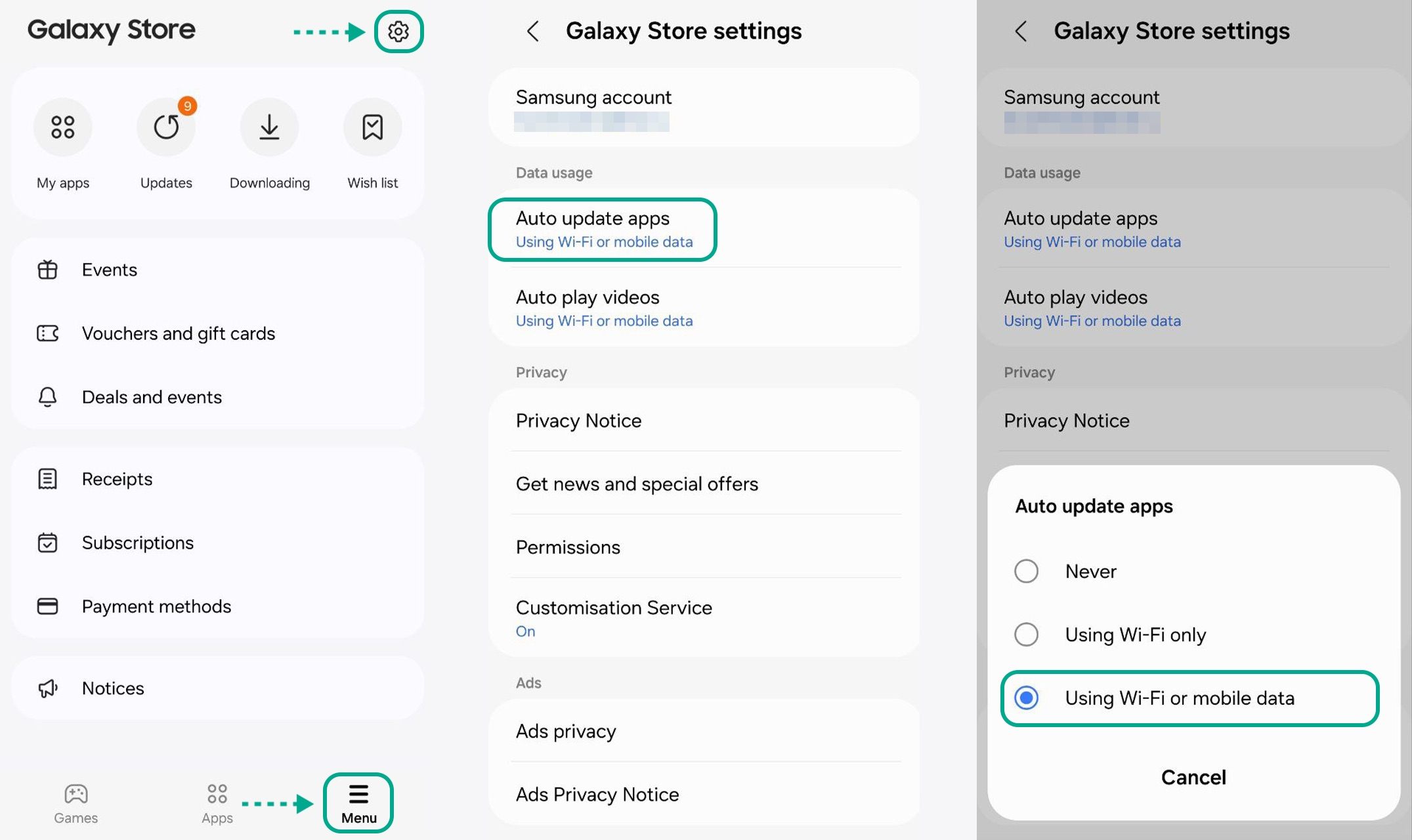
How to enable auto-update of apps in the Samsung Galaxy Store
To enable auto-update of apps in Huawei AppGallery:
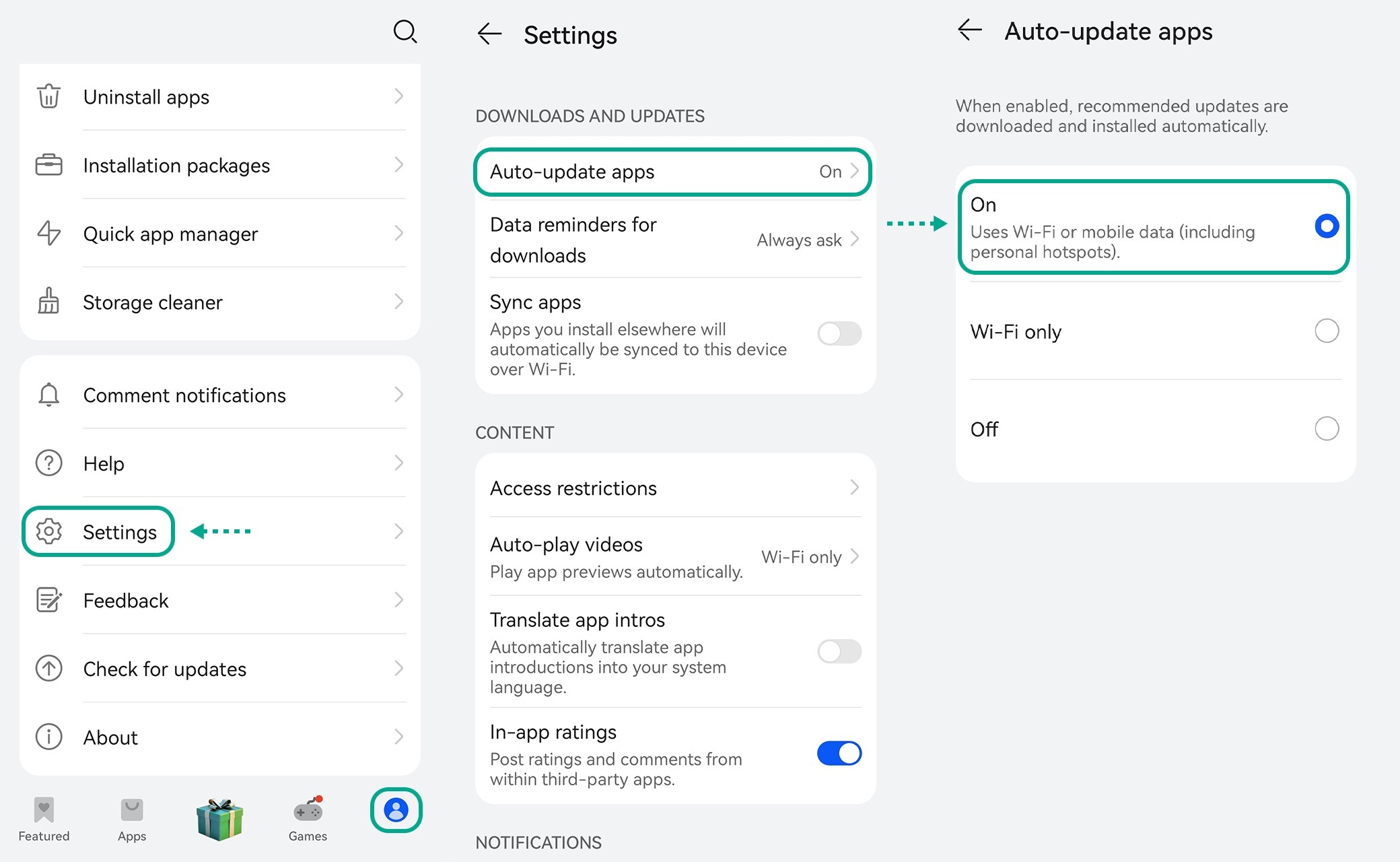
How to enable auto-update of apps in Huawei AppGallery
To enable auto-update of apps in Vivo V-Appstore:
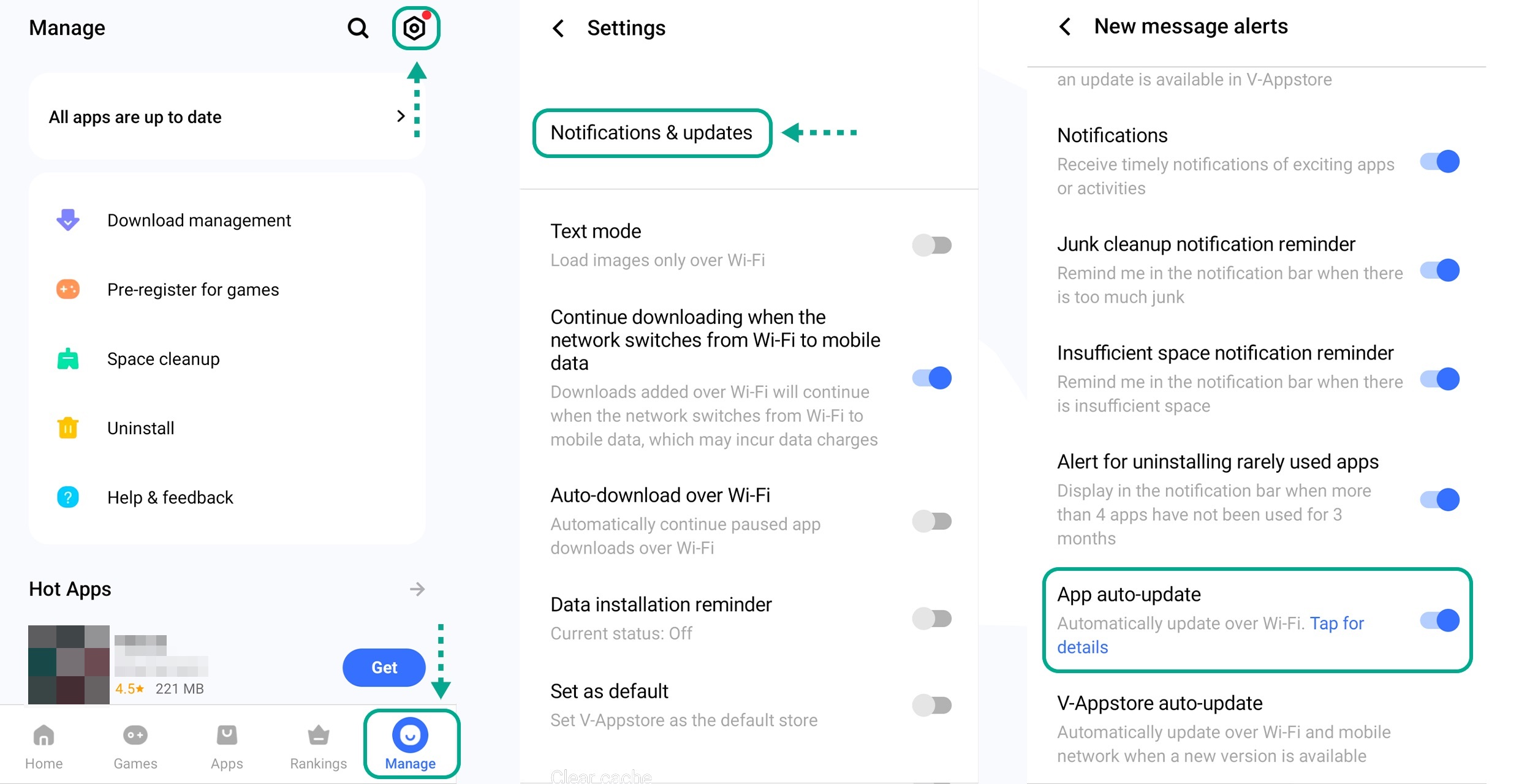
How to enable auto-update of apps in Vivo V-Appstore
First, you need to download the APK files from your My Kaspersky account or from our website by following the corresponding link:
Your device may warn you that the file isn’t safe to download. If this happens, confirm your action by tapping Keep or Download.
Once the download is complete, go to My files → Downloads, and tap the downloaded file. When installing it, you’ll need to allow installation of unknown apps from a new source. Here’s how to do it: Go to Settings → Apps → Additional → Special app access → Install unknown apps, find your browser in the list, and toggle the switch “Allow app installs” to On. That done, the Kaspersky app will continue to install. See here for more detailed instructions.
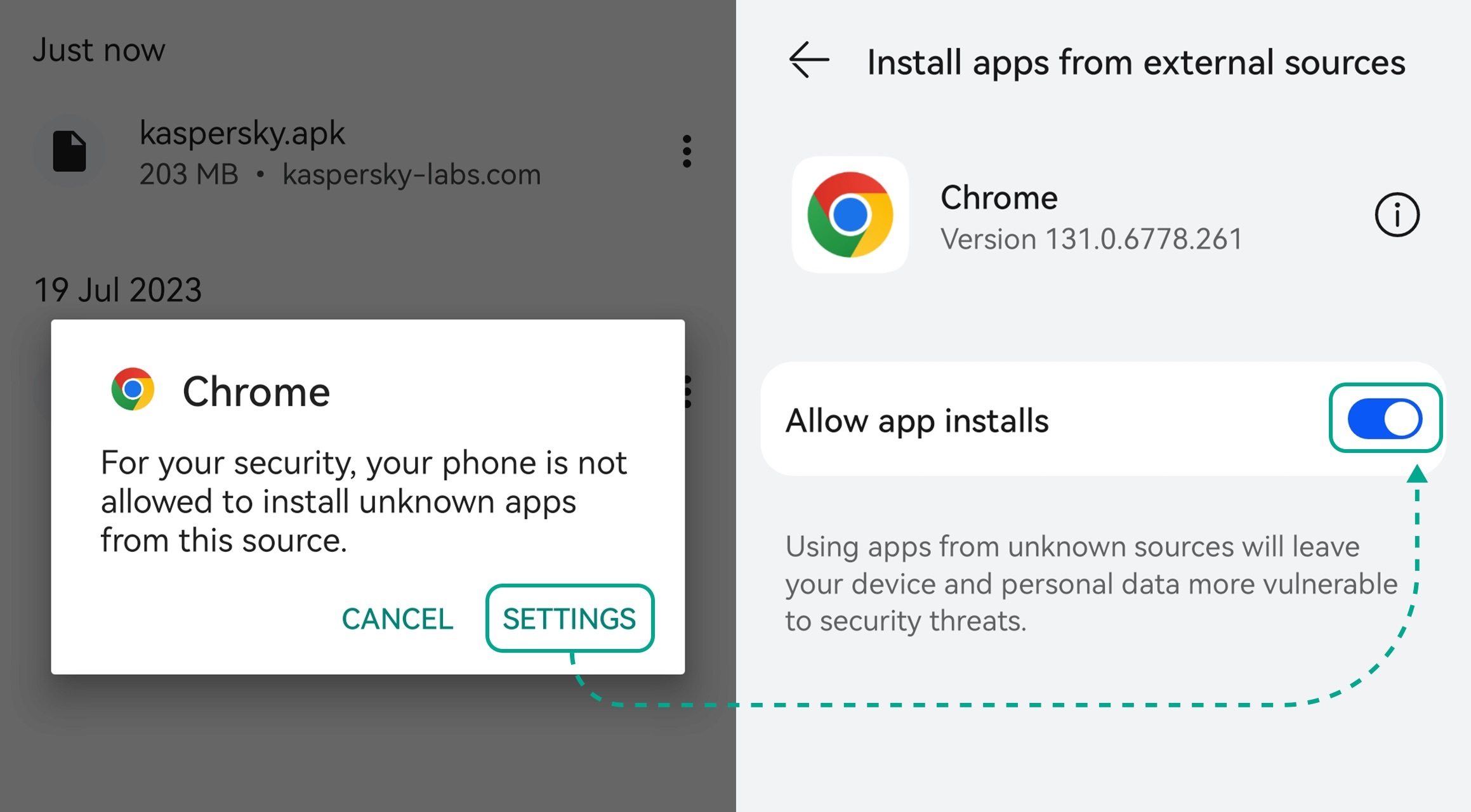
Granting permission to install unknown apps from Google Chrome
After installing our apps, make sure to turn this feature Off, since it can pose a security risk and so should only be used when absolutely necessary. To find out why we insist on this, see this Kaspersky Daily post.
You can buy a subscription — for example, Kaspersky Premium — directly in the app itself. To do this, navigate to Profile, and under the Kaspersky Free icon tap Let’s go. Then select one of the three subscription tiers — Kaspersky Standard, Kaspersky Plus, or Kaspersky Premium and the number of devices you want to protect, and check out.
If you installed any of our apps from an alternative store or from an APK file over one already installed from Google Play, there’s no need to reactivate your license.
If you bought a Kaspersky app on Google Play and connected it to your My Kaspersky account, but then uninstalled it and downloaded a new one from an APK file or an alternative store, your previously purchased license will work without any problems. See our detailed activation instructions.
If you uninstalled a Kaspersky app that was purchased from Google Play but not connected to your My Kaspersky account, then installed a new one according to the instructions in this post, please contact technical support to reactivate your license. They’ll be happy to assist.
If you have a license for multiple devices, the easiest way to activate apps on additional devices is to install them using the links in My Kaspersky — this way they’ll be activated automatically. You can also install Kaspersky apps from an alternative store or APK file as described above, and follow the instructions to activate the license.
Kaspersky official blog – Read More
Imagine receiving a penetration test report that leaves you with more questions than answers. Questions like, “Were all functionalities of the web app tested?” or ” Were there any security issues that could have been identified during testing?” often go unresolved, raising concerns about the thoroughness of the security testing. This frustration is common among many security teams. Pentest
The Hacker News – Read More