
Phishing crypto-wallet clones in the App Store and other attacks on iOS and macOS crypto owners | Kaspersky official blog
Even if you keep your crypto assets in a cold wallet and use Apple devices — which enjoy a strong reputation for security — cybercriminals may still find a way to swipe your funds. These bad actors are combining well-known tricks into new attack chains — including baiting victims right inside the App Store.
Crypto-wallet clones
This past March, we discovered phishing apps at the top of the Chinese App Store charts with icons and names mimicking popular crypto-wallet management tools. Because regional restrictions block several official wallet apps from the Chinese App Store, attackers have stepped in to fill the void. They created fake apps using icons similar to the originals and names with intentional typos — likely to bypass App Store moderation and deceive users.
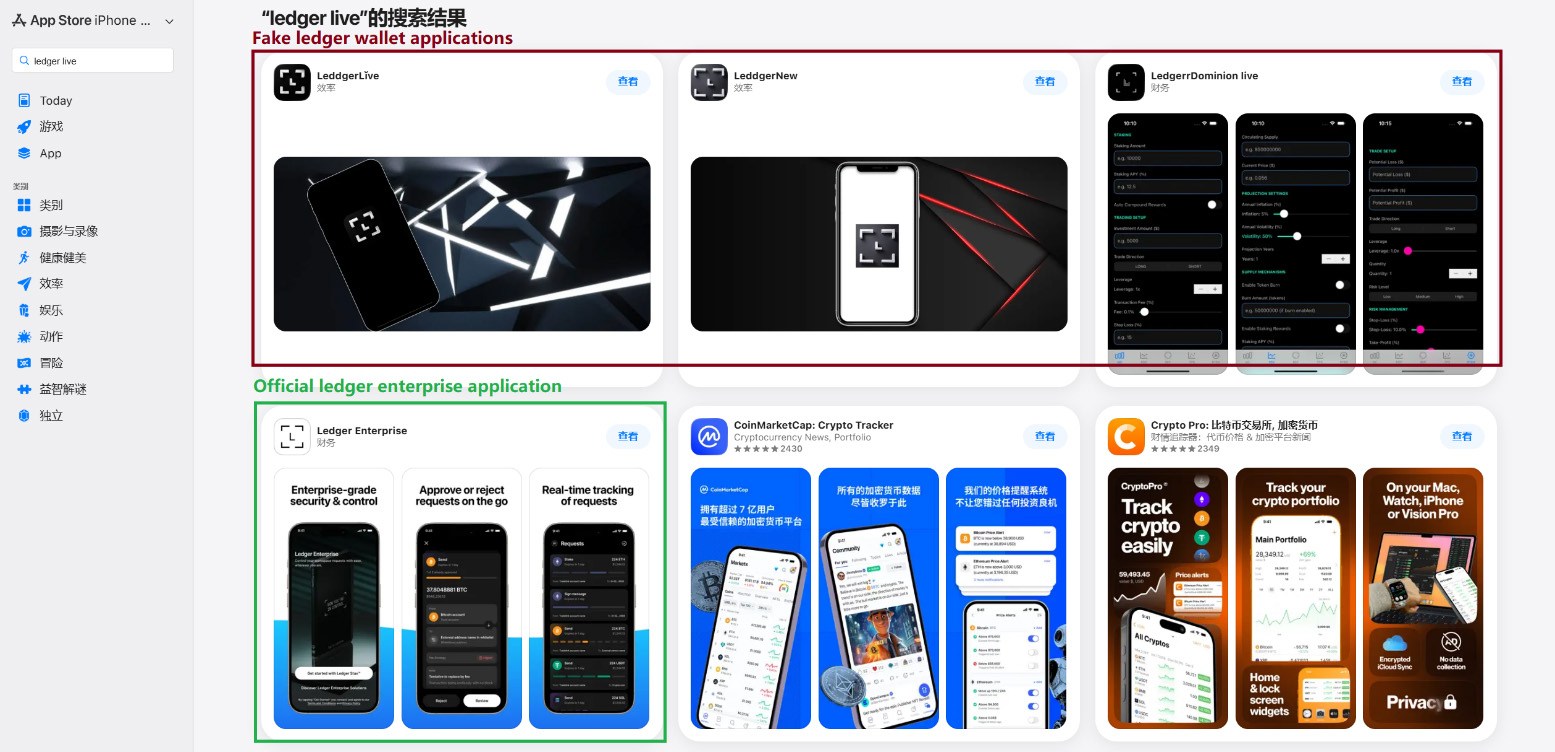
Phishing apps in the App Store appearing in search results for Ledger Wallet (formerly Ledger Live)
Beyond these, we found a number of apps with names and icons that had nothing to do with cryptocurrency. However, their promotional banners claimed they could be used to download and install official wallet apps that are otherwise unavailable in the regional App Store.
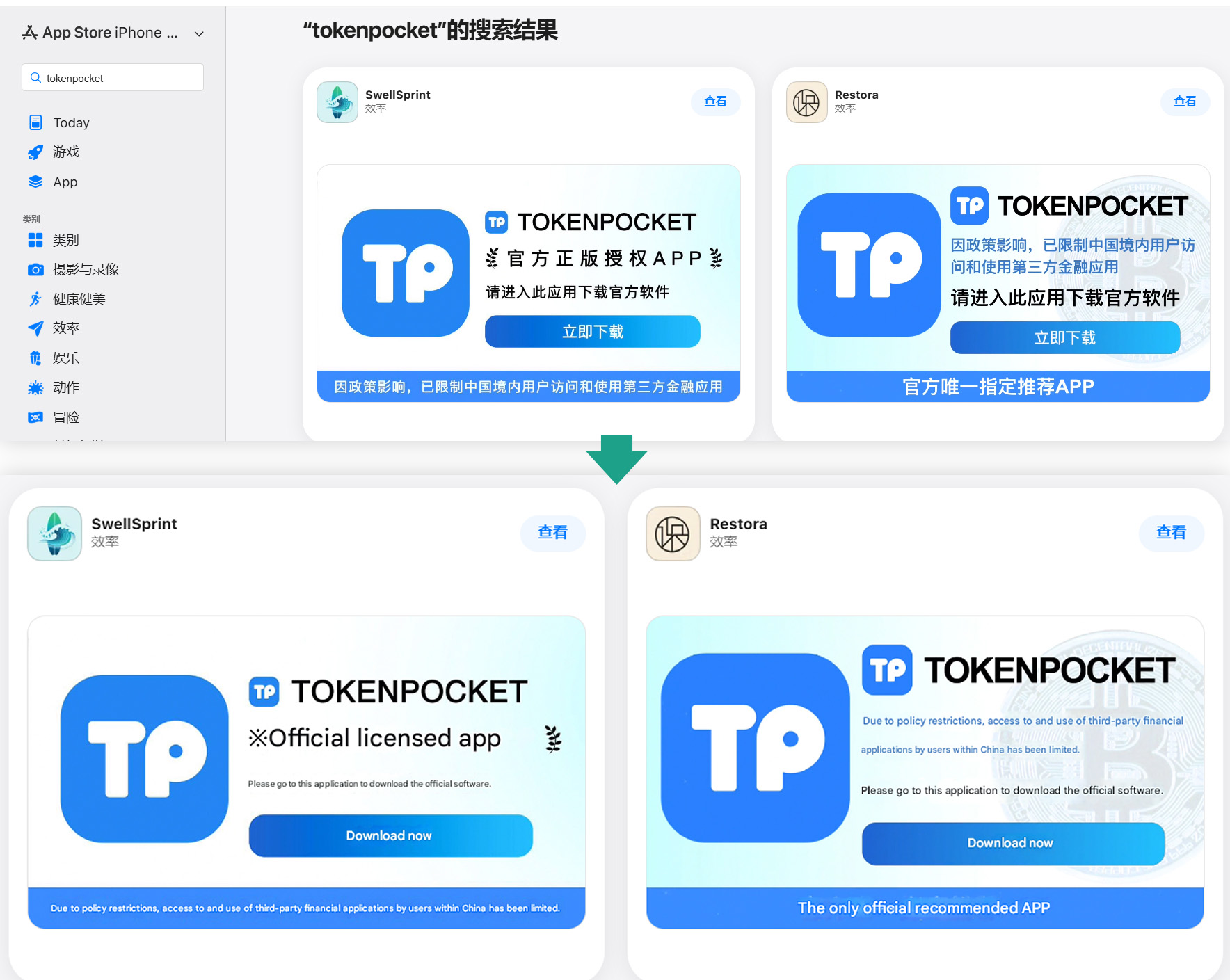
Banners on app pages claiming they can be used to download the official TokenPocket app, which is missing from the local App Store
In total, we identified 26 phishing apps mimicking the following popular wallets:
- MetaMask
- Ledger
- Trust Wallet
- Coinbase
- TokenPocket
- imToken
- Bitpie
A few other very similar apps didn’t contain phishing functionality yet, but all signs point to them being linked to the same attackers. It’s likely they plan to add malicious features in future updates.
To get these apps cleared for the App Store, the developers added basic functionality, such as a game, a calculator, or a task planner.
Installing any of these clones is the first step toward losing your crypto assets. While the apps themselves don’t steal cryptocurrency, seed phrases, or passwords, they serve as bait that builds user trust by virtue of being listed on the official App Store. Once installed and launched, however, the app opens a phishing site in the victim’s browser, designed to look like the App Store, which then prompts the user to install a compromised version of the relevant crypto wallet. The attackers have created multiple versions of these malicious modules, each tailored to a specific wallet. You can find a detailed technical breakdown of this attack in our Securelist post.
A victim who falls for the ruse is first prompted to install a provisioning profile, which allows apps to be sideloaded onto an iPhone outside the App Store. The profile is then used to install the malicious app itself.
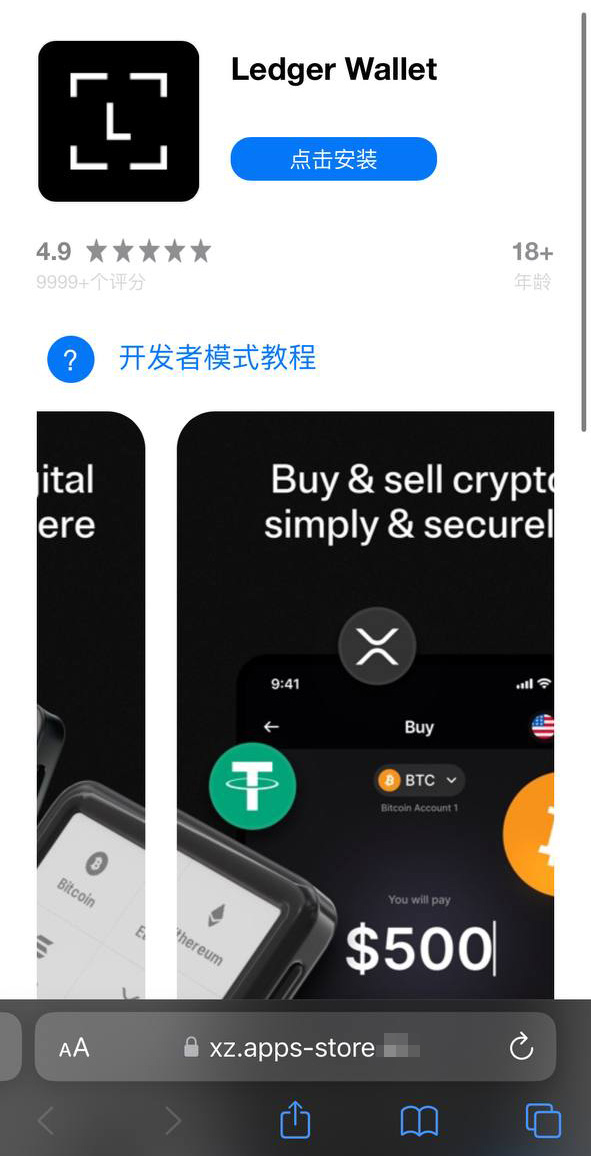
A fake App Store site prompting the user to install an app masquerading as Ledger Wallet
In the example above, the malware is built on the original Ledger app with integrated Trojan functionality. The app looks identical to the original, but when connected to a hardware wallet, it displays a window requiring a seed phrase, supposedly to restore access. This is not standard procedure: typically, you only need to enter a PIN — never a recovery phrase. If a victim is deceived by the app’s apparent legitimacy and enters their seed phrase, it’s immediately sent to the attackers’ server — granting them full access to the victim’s crypto assets.
Sideloading outside the App Store
A critical component of this scheme involves installing malware on the victim’s iPhone by bypassing the App Store and its verification process. This is executed much like the SparkKitty iOS infostealer we discovered previously. The attackers managed to gain access to the Apple Developer Enterprise Program. For just US$299 a year — and following an interview and corporate verification — this program allows entities to issue their own configuration profiles and apps for direct download to user devices without ever publishing them in the App Store.
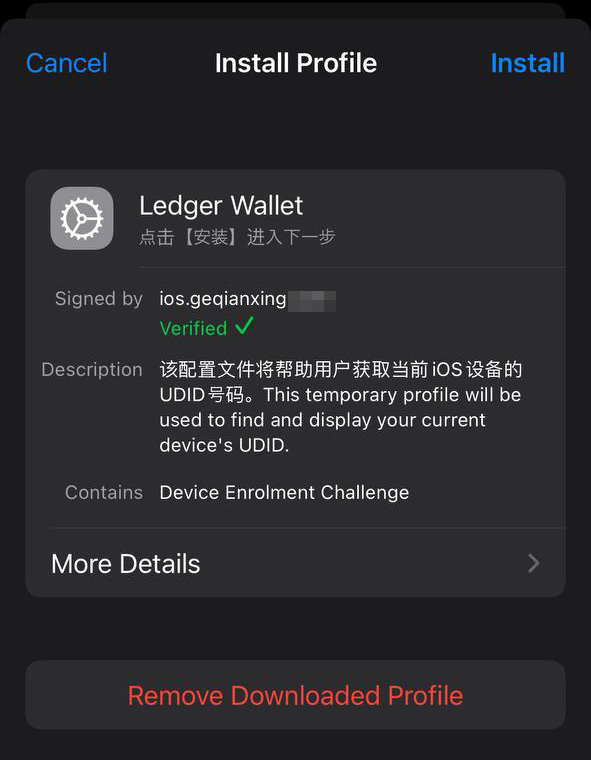
To install the app, the victim must first install a configuration profile that enables the malware to be downloaded directly, bypassing the App Store. Note the green verification checkmark
In general, enterprise profiles are designed to allow organizations to deploy internal apps to employees’ devices. These apps don’t require App Store publication and can be installed on an unlimited number of devices. Unfortunately, this feature is often abused. These profiles are frequently used for software that fails to meet Apple’s policies, such as online casinos, pirated mods, and, of course, malware.
This is precisely why the fake site mimicking the Apple Store prompts the user to install a configuration profile before delivering the app signed by that profile.
Stealing cryptocurrency via macOS apps and extensions
Many crypto owners prefer managing their wallets on a computer rather than a smartphone — often choosing Macs for the task. It’s no surprise, then, that most popular macOS infostealers target crypto-wallet data in one way or another. Recently, however, a new malicious tactic has been gaining traction: in addition to stealing saved data, attackers are embedding phishing dialogs directly into legitimate wallet applications already installed on users’ computers. Earlier this year, the MacSync infostealer adopted this functionality. It infiltrates systems via ClickFix attacks: users searching for software are lured to fake sites with fraudulent instructions to install the app by running commands in Terminal. This executes the infostealer, which scrapes passwords and cookies saved in Chrome, chats from popular messengers, and data from browser-based crypto-wallet extensions.
But the most interesting part is what happens next. If the victim already has a legitimate Trezor or Ledger app installed, the infostealer downloads additional modules and… swaps out fragments of the app with its own trojanized code. The malware then re-signs the modified file so that after these “fixes” are made, Gatekeeper (a built-in protection mechanism in macOS) allows the application to run without an additional permission request from the user. While this trick doesn’t always work, it’s effective for simpler apps built on the popular Electron framework.
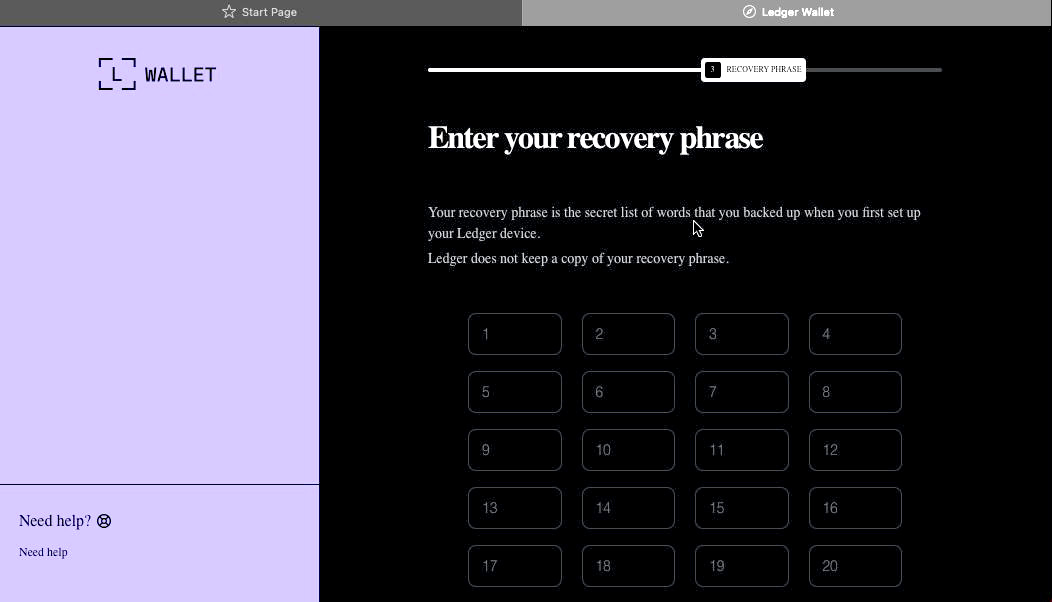
The trojanized app prompts the user for the seed phrase of their wallet
When the trojanized app is opened, it fakes an error and initiates a “recovery process”, prompting the user for their wallet seed phrase.
Besides MacSync, the developers behind other popular macOS infostealers have adopted this same trojanization approach. We previously detailed a similar mechanism used to compromise Exodus and Bitcoin-Qt wallets.
How to keep your crypto assets safe
Time and again, attackers have proved that no gadget is truly invincible. With so many developers and cryptocurrency users preferring macOS and iOS, threat actors have designed and deployed industrial-scale attacks for both platforms. Staying safe requires in-depth defense backed by skepticism and vigilance.
- Download apps only from trusted sources: either the developer’s official website or their App Store page. Since malware can slip even into official stores, always verify the app’s publisher.
- Check the app’s rating, publication date, and download counter.
- Read the reviews — especially the negative ones. Sort reviews by date to evaluate the latest version. Attackers often start with a perfectly innocent app that earns high ratings before introducing malicious functionality in a later update.
- Never copy and paste commands into your Terminal unless you’re 100% certain what they do. These attacks have become very popular lately, often disguised as installation steps for AI apps like Claude Code or OpenClaw.
- Use a comprehensive security system on all your computers and smartphones. We recommend Kaspersky Premium. This goes a long way to mitigate the risk of visiting phishing sites or installing malicious apps.
- Never enter your seed phrase into a hardware wallet app, on a website, or in a chat. In every scenario, whether migrating to a new wallet, reinstalling apps, or recovering a wallet, the seed phrase should be entered exclusively on the hardware device itself — never in a mobile or desktop app.
- Always verify the recipient’s address on the hardware wallet’s screen to prevent attacks involving address swapping.
- Store your seed phrases in the most secure way possible, such as on a metal plate or in a sealed envelope in a safe deposit box. It’s best not to store them on a computer at all, but if that’s your only option, use a secure, encrypted vault like Kaspersky Password Manager.
Still believe that Apple devices are bulletproof? Think again as you read the following:
Kaspersky official blog – Read More