Is a Gemini AI update about to kill privacy on your Android device? | Kaspersky official blog

On July 7, 2025, Google rolled out a Gemini update that gives its AI-powered assistant access to Phone, Messages, WhatsApp, and Utilities data on Android devices. The company announced this update via an email to the users of its chatbot — essentially presenting them with a fait accompli. “We’ve made it easier for Gemini to interact with your device”, the email read. “Gemini will soon be able to help you use Phone, Messages, WhatsApp, and Utilities on your phone, whether your Gemini Apps Activity is on or off”.
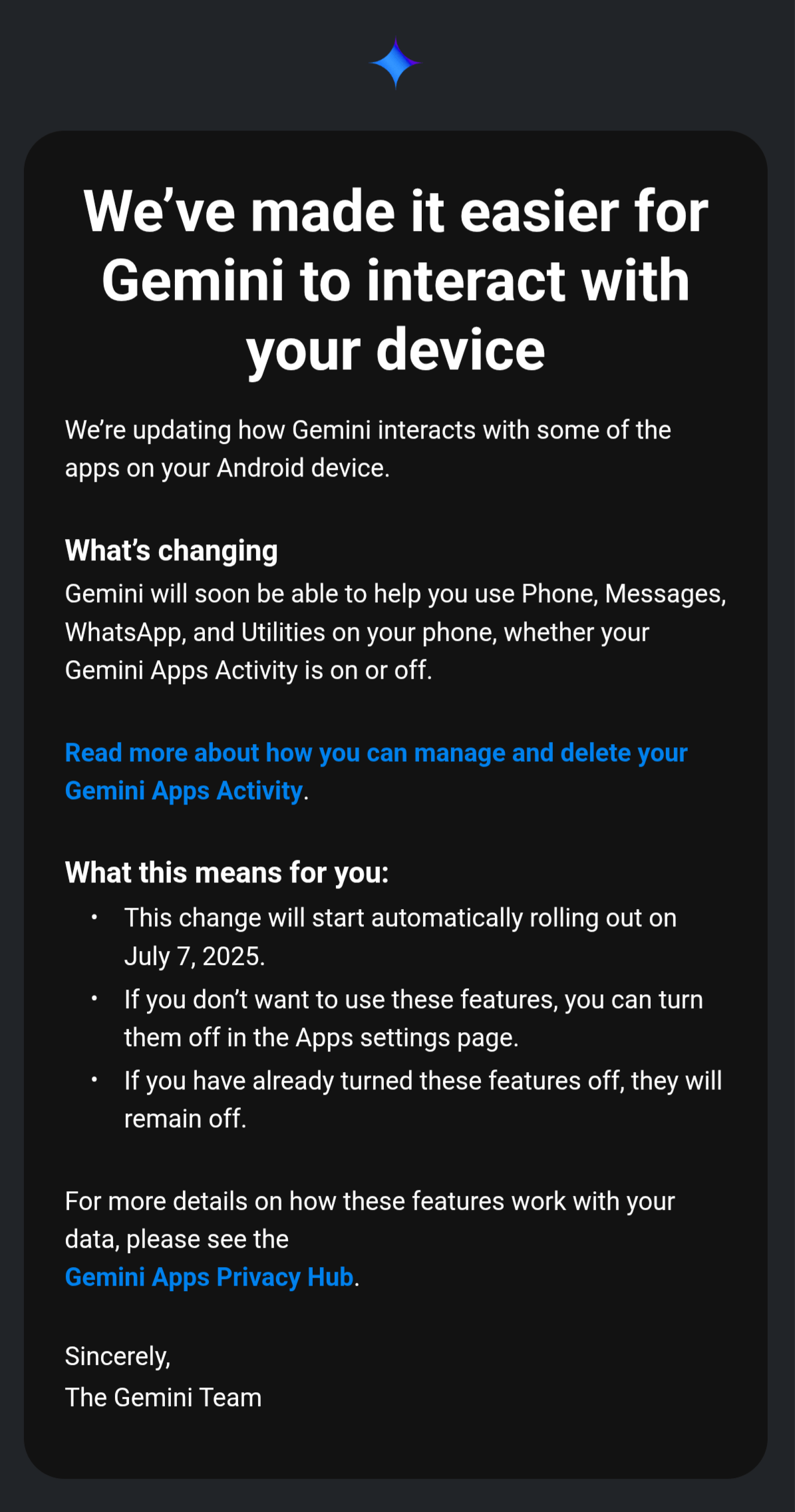
According to Google, the update improves privacy because users can now use Gemini's features without having to enable Gemini Apps Activity. Pretty convenient, right?

According to Google, the update improves privacy because users can now use Gemini’s features without having to enable Gemini Apps Activity. Pretty convenient, right?

The update applies regardless of whether the Gemini Apps Activity feature is enabled or not. Google pushed the update to all Android versions that support Gemini, starting with Android 10. So, although the company warned users, it clearly failed to ask for their explicit consent. Google has already practiced subtle coercion to use its features before: just a month ago, Gemini was integrated into the Gmail client without any warning.

The email itself contained neither clear instructions for how to disable the new features, nor detailed explanations as to what exactly Gemini would do with the collected data. Users received the email just two weeks before the update was launched.

As you’d expect, the tech community was on the verge of panic. Previously, users who wanted to integrate Gemini with their apps had to explicitly enable Gemini Apps Activity. This allowed Gemini to store and use their data long-term, and potentially gave developers access to it – of course, “only for the purpose of improving Google AI”.
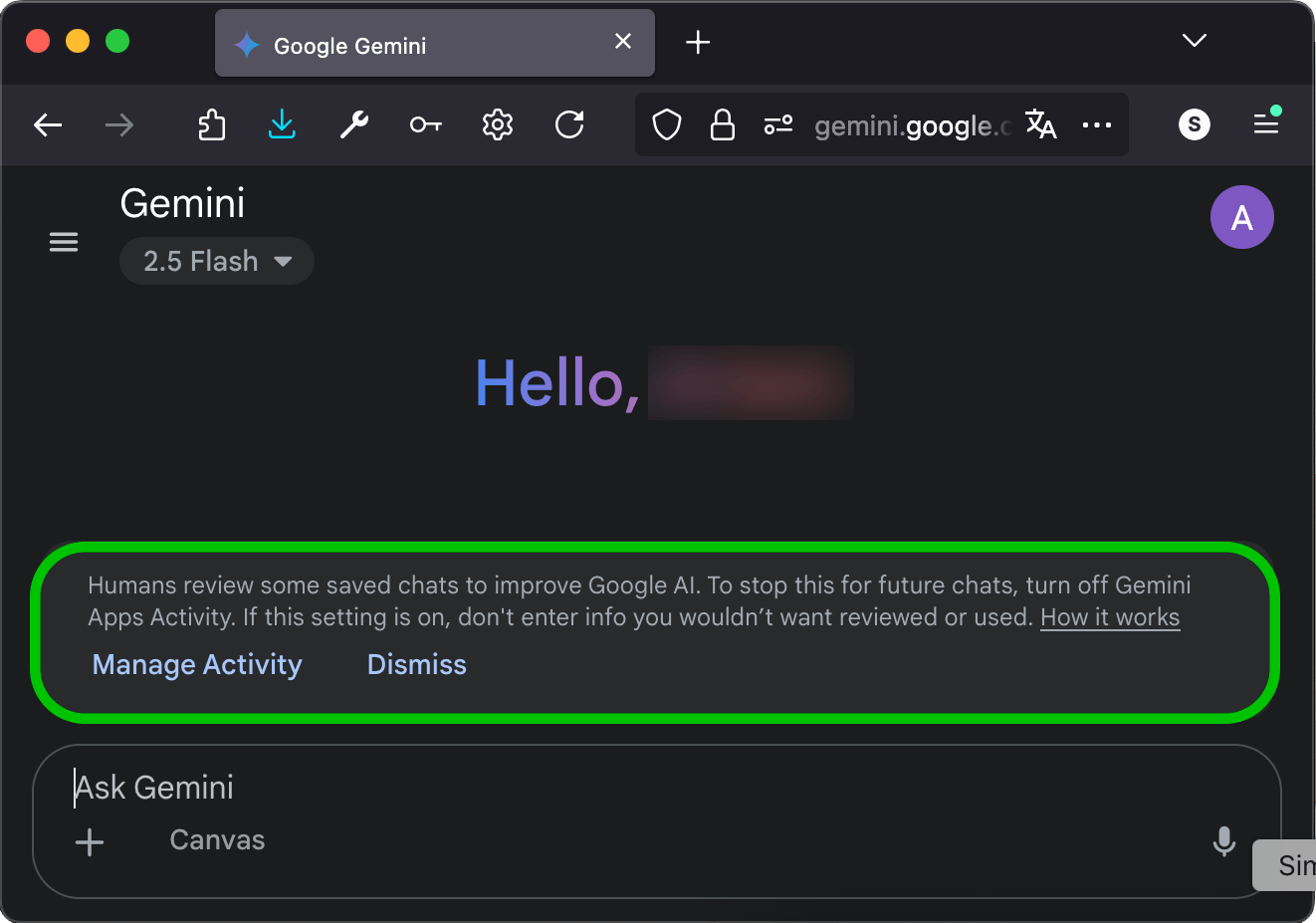
Warning prompt when launching Gemini in the browser for the first time

Warning prompt when launching Gemini in the browser for the first time

Google isn’t alone in this. OpenAI, Anthropic, and other AI companies are guilty of the same “improving service quality” excuse. At least Google gives users the illusion of choice. What makes this case different is that, even with Gemini Apps Activity turned off, Google will still retain your conversations with the AI assistant for up to 72 hours — all for the same purposes of safety, security, and feedback.

We won’t debate whether this is good or bad — we’ll just show you how to completely block Gemini’s access to your apps and data. Grab your phone, and let’s go!…

How to disable Gemini via the app?

  1. Open Gemini on your Android device.
  2. Tap your profile picture or initials in the top-right corner.
  3. Select Gemini Apps Activity.
  4. Tap Turn off, or select Turn off and delete activity.
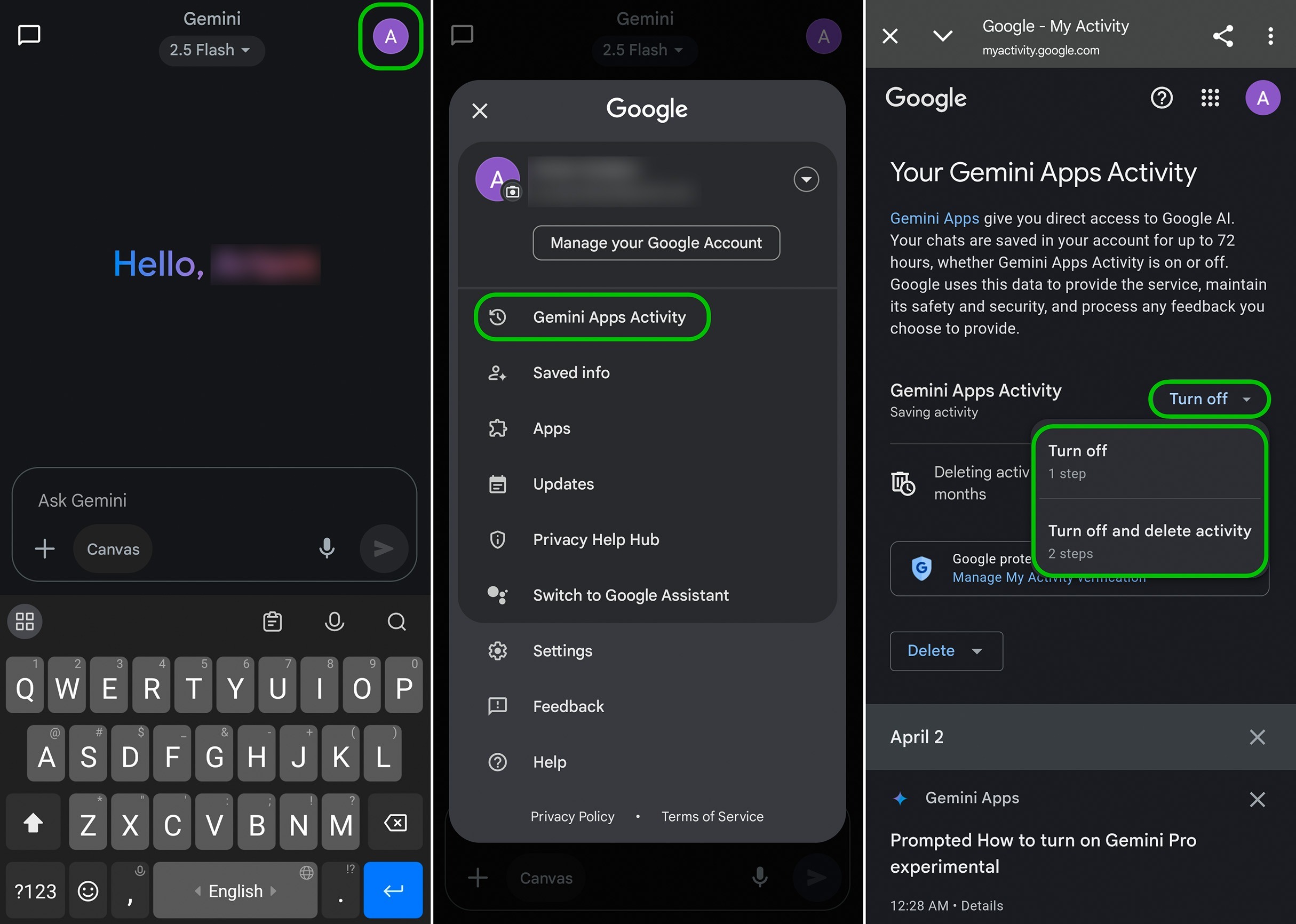
Disabling Gemini via the app

Disabling Gemini via the app

How to disable Gemini via the web interface?

  1. Open Gemini in a browser.
  2. Click the hamburger menu in the top-left corner.
  3. Select Activity or Settings & HelpActivity.
  4. Tap Turn off, or select Turn off and delete activity.

Alternatively, you can reach that option directly to turn off Gemini Apps Activity right there.
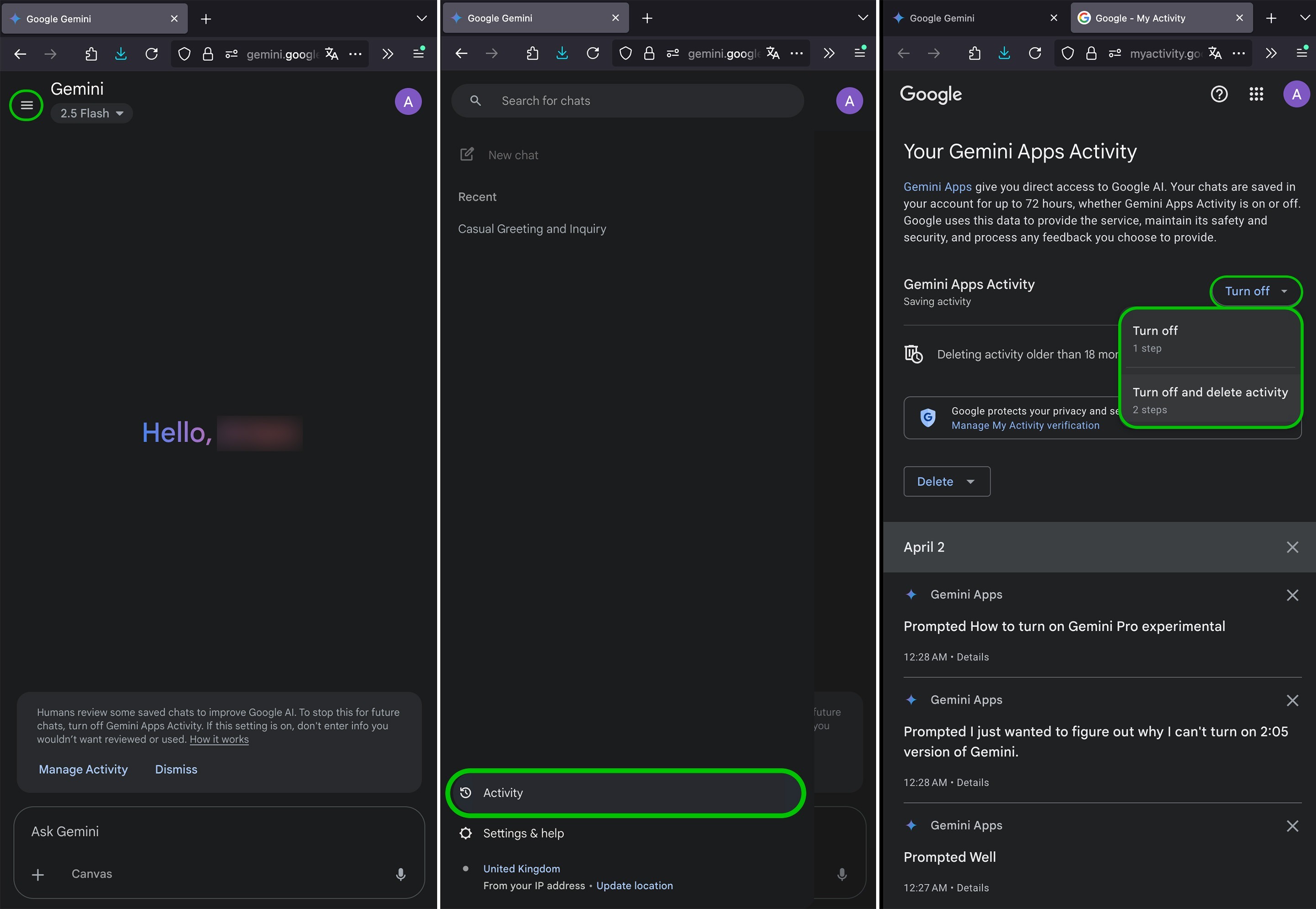
Disabling Gemini via the web interface

Disabling Gemini via the web interface

How to block Gemini from accessing individual apps and services?

If rather than disabling the AI assistant altogether you want to restrict Gemini’s access to data only from certain services like your email or photos, you can customize which apps it can work with and which it cannot.

Disabling Gemini’s access to individual services via the app:

  1. Open the Gemini app.
  2. Go to your profile and select Apps.
  3. Turn off the toggle next to each app or service whose data you don’t want to share with Gemini.
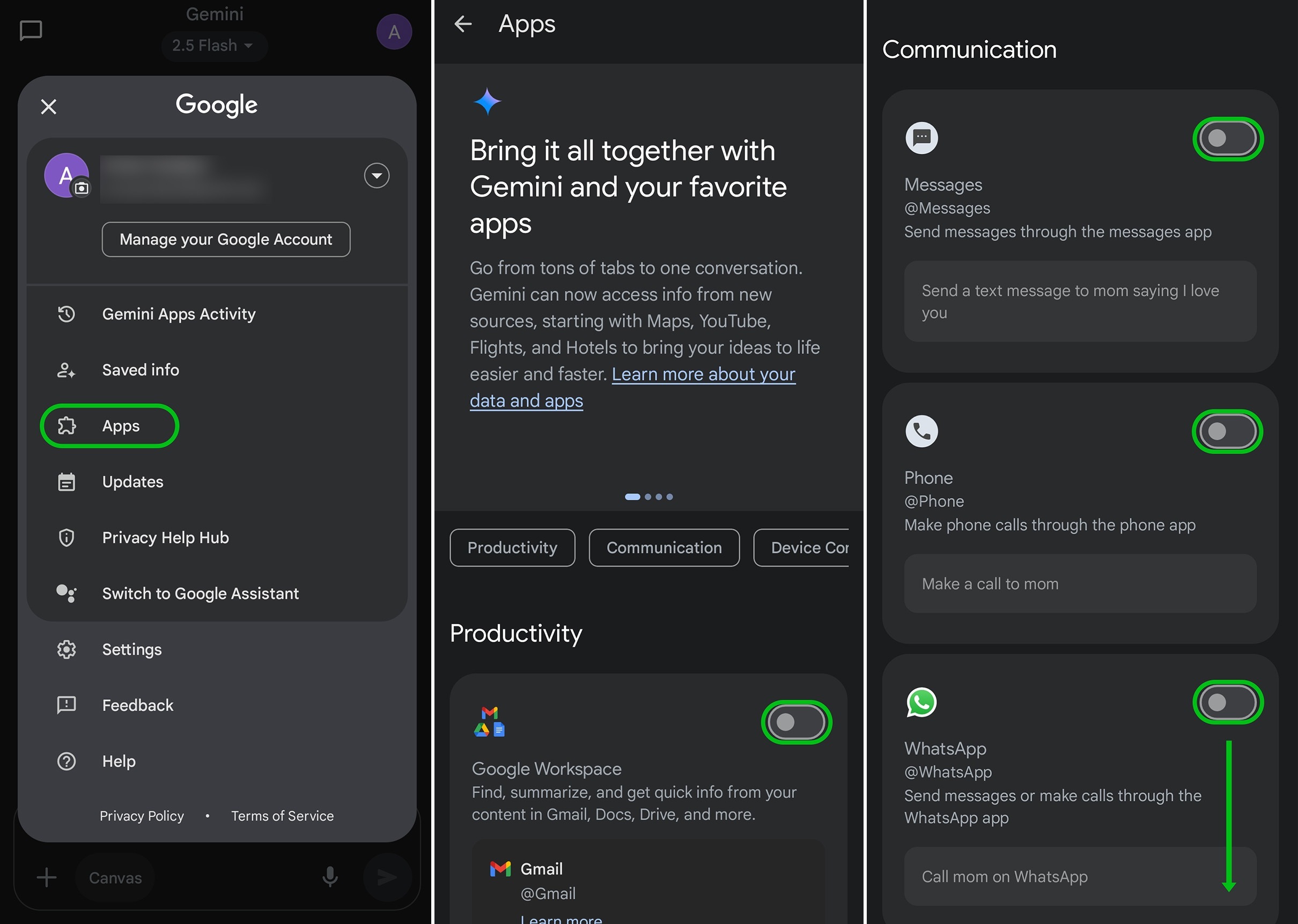
Disabling Gemini's access to individual services via the app

Disabling Gemini’s access to individual services via the app

Disabling Gemini’s access to individual services via the web interface:

  1. Open Gemini in a browser.
  2. Click the hamburger menu in the top-left corner.
  3. Select Settings & help → Apps.
  4. Turn off the toggle next to each app or service whose data you don’t want to share with Gemini.

Alternatively, you can reach that section of the settings directly.
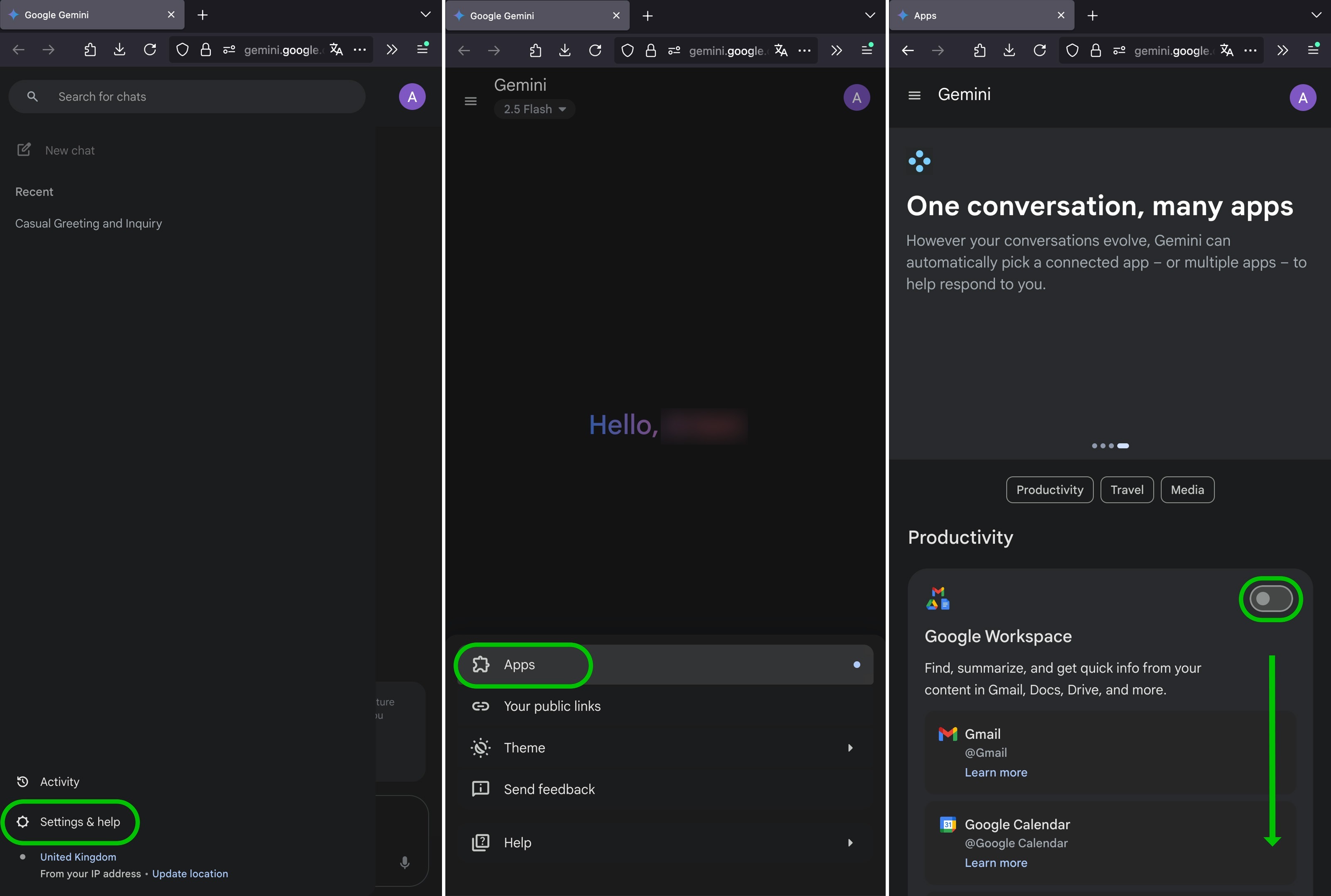
Disabling Gemini's access to individual services via the web interface

Disabling Gemini’s access to individual services via the web interface

How to configure additional privacy settings for Gemini?

Deleting saved Gemini data:

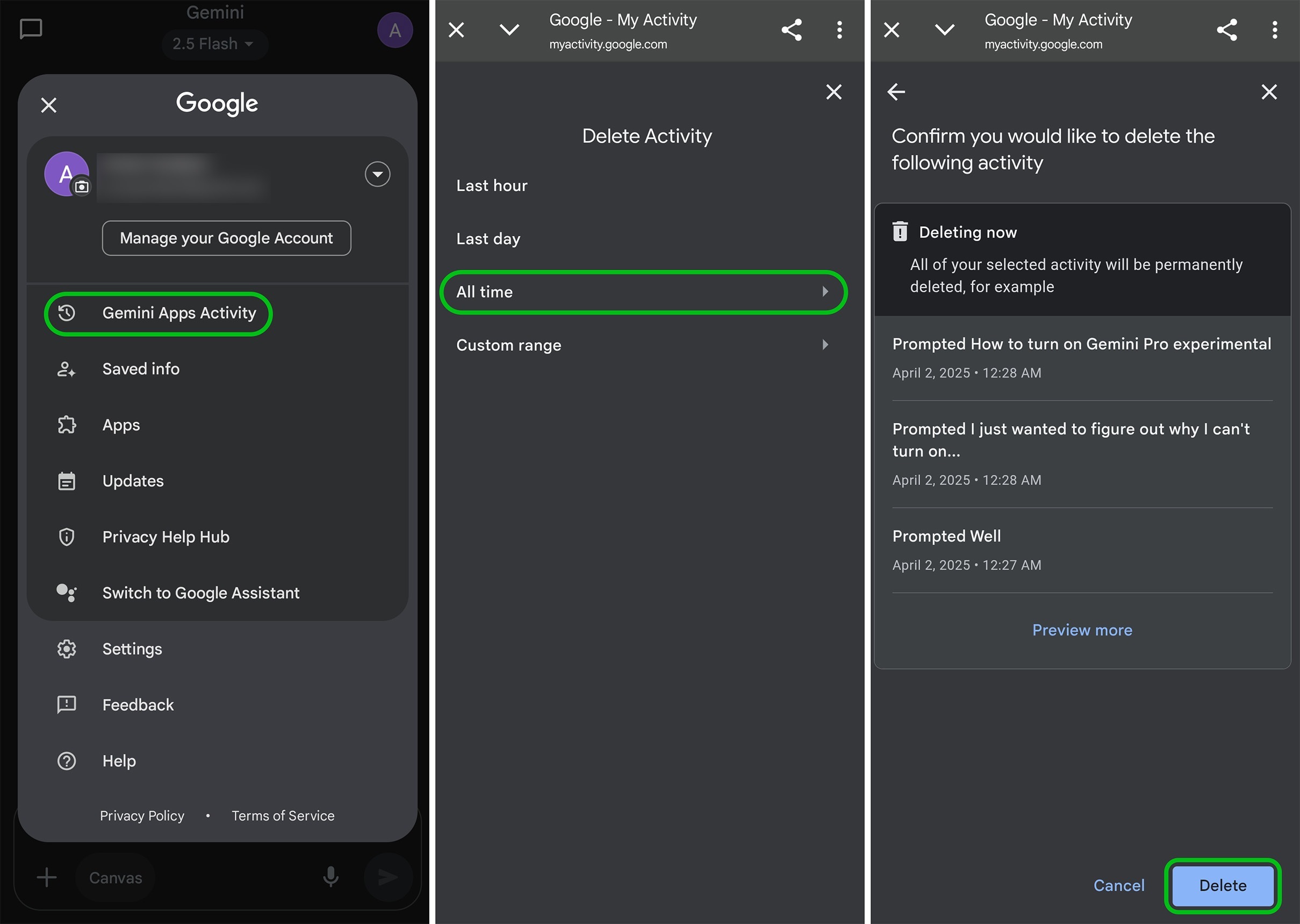
  1. While in the Gemini app, go to your profile and select Gemini Apps Activity. In a browser, open Activity, click Delete, and select a time range.
    • Last hour/day clears your recent activity.
    • All time clears all your activity.
    • Custom range lets you select a range of data to clear.
  2. Confirm deletion.
Deleting saved Gemini data

Deleting saved Gemini data

Setting up auto-delete for Gemini data:

  1. While in the Gemini app, go to your profile, and select Gemini Apps Activity. In a browser, open Activity.
  2. Choose how long saved data will be kept before it’s deleted: three, 18, or 36 months.
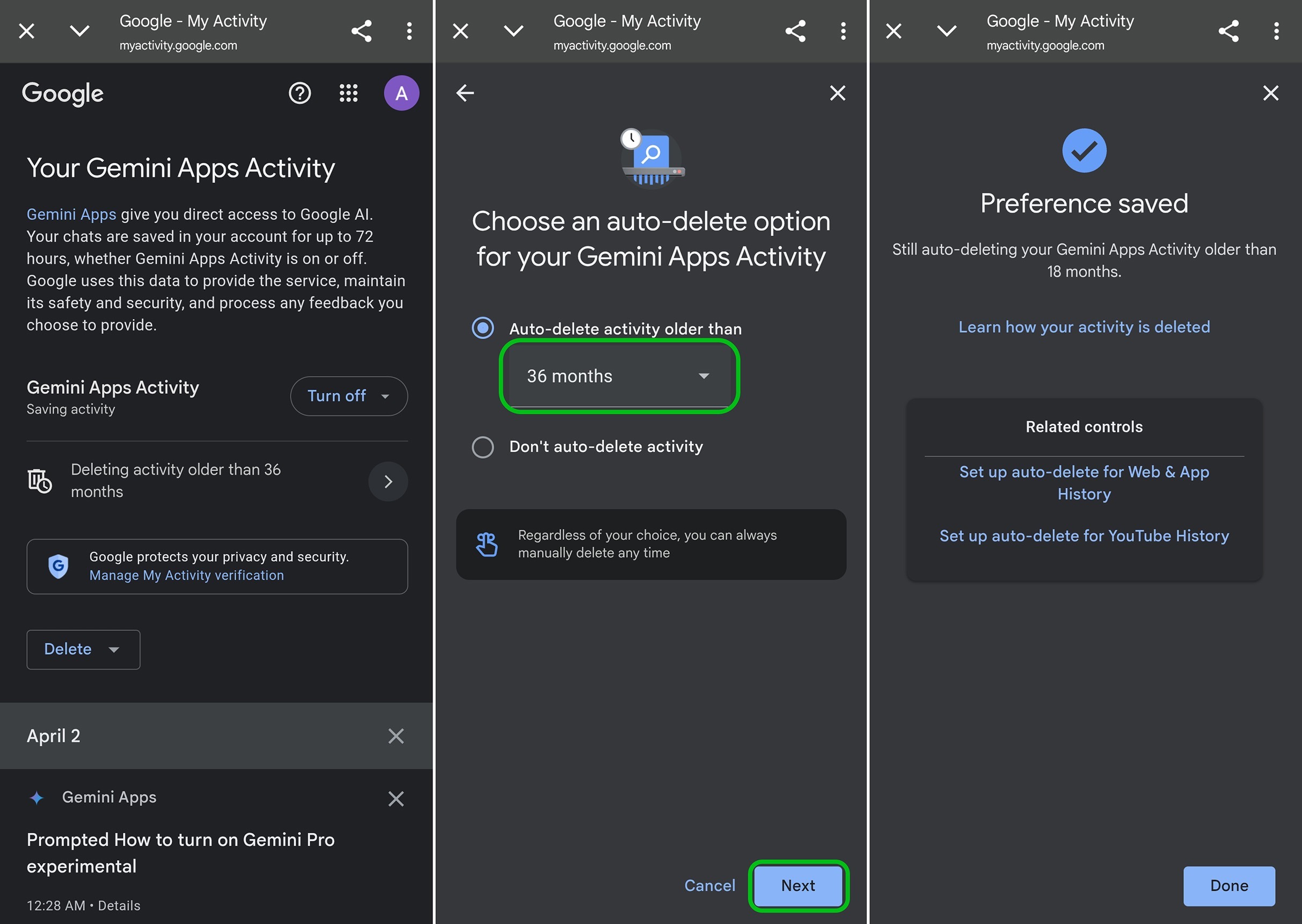
Setting up auto-delete for Gemini data

Setting up auto-delete for Gemini data

How to completely remove Gemini from your smartphone?

If you plan not to use Gemini on your phone altogether, you can simply uninstall the app:

  1. Go to Settings and select Apps.
  2. Find Gemini, and tap Uninstall if that option is available.
  3. If you don’t see Uninstall, tap Disable Gemini is a system app on some phones and thus not easy to remove. For more details on how to deal with this, see Delete the undeletable: how to disable and remove Android bloatware.

If you’re determined not to have any Google services on your phone, consider installing GrapheneOS; however, be forewarned that this is a solution for geeks with a Pixel phone only.

How to check that you’ve successfully disabled Gemini?

When you’re done with the settings, it’s a good idea to verify if your changes have been applied successfully:

  1. Go to the Gemini Activity.
  2. Check that there are no records of your activity.
  3. In the Gemini app, check the state of the toggles in the Apps.
  4. Repeat these checks after each Google update you install.

To protect your Android device, use tried-and-true security solutions like Kaspersky for Android. This will give you peace of mind knowing you don’t have to worry about malware, your privacy, passwords, or personal and payment data.

Here are a few other posts about the subtleties of privacy in Google services and beyond.

Kaspersky official blog – ​Read More

Nippon Steel Subsidiary Blames Data Breach on Zero-Day Attack

Nippon Steel Solutions has disclosed a data breach that resulted from the exploitation of a zero-day in network equipment.

The post Nippon Steel Subsidiary Blames Data Breach on Zero-Day Attack appeared first on SecurityWeek.

SecurityWeek – ​Read More

Fake CNN and BBC sites used to push investment scams

Thousands of web pages falsely branded as popular news sites are conduits for fake cryptocurrency investment scams, researchers said.

The Record from Recorded Future News – ​Read More

Know Your Enemy: Understanding Dark Market Dynamics

To help counter crime, today’s organizations require a cyber-defense strategy that incorporates the mindset of the cybercriminal.

darkreading – ​Read More

Unlock Security Operations Success With Data Analysis

From data fog to threat clarity: Automating security analytics helps security teams stop fighting phantoms and respond to what matters.

darkreading – ​Read More

U.S. Sanctions North Korean Andariel Hacker Behind Fraudulent IT Worker Scheme

The U.S. Department of the Treasury’s Office of Foreign Assets Control (OFAC) on Tuesday sanctioned a member of a North Korean hacking group called Andariel for their role in the infamous remote information technology (IT) worker scheme.
The Treasury said Song Kum Hyok, a 38-year-old North Korean national with an address in the Chinese province of Jilin, enabled the fraudulent operation by using

The Hacker News – ​Read More

How to protect your cell phone number from SIM swap attacks

These carrier security settings can prevent your phone number from being hijacked or stolen.

Security News | TechCrunch – ​Read More

Samsung Announces Security Improvements for Galaxy Smartphones

New Samsung Galaxy features include protections for on-device AI, expanded cross-device threat detection, and quantum-resistant encryption for network security.

The post Samsung Announces Security Improvements for Galaxy Smartphones appeared first on SecurityWeek.

SecurityWeek – ​Read More

How to Maintain Fast and Fatigue-Free Alert Triage with Threat Intelligence 

Alert triage as one of the critical SOC and MSSP workflows implies evaluating, prioritizing, and categorizing security alerts to determine which threats require immediate attention and which can be safely dismissed or handled through automated processes. 

Efficient alert triage, supported by robust threat intelligence, ensures that organizations stay ahead of adversaries while maintaining analyst productivity and morale. We shall see how it works on the example of ANY.RUN’s Threat Intelligence Lookup.  

Why Triage is the Key to Efficiency 

For SOCs, triage ensures that internal teams focus on high-priority incidents that could compromise critical systems or data. MSSPs, managing multiple clients, rely on triage to allocate resources efficiently across diverse environments, ensuring timely responses tailored to each client’s needs.  

The triage process acts as the gateway between detection and action — the critical juncture where security alerts either trigger appropriate defensive measures or fade into background noise. 

Challenges and Problems of Alert Triage 

Alert triage is fraught with challenges that compromise its effectiveness in many organizations. 

  • Alert Overload: Modern SOCs generate thousands to millions of alerts daily from tools like SIEMs, EDRs, and network monitoring systems. Analysts can only investigate a fraction of these, leading to potential oversight of critical threats. 
  • False Positives: Many alerts are benign or irrelevant, consuming valuable time and resources.  
  • Lack of Context: Alerts often require analysts to manually gather data from disparate sources, slowing down investigations and increasing the risk of errors. 
  • Resource Constraints: Limited staffing and budget constraints stretch SOC teams thin, making it difficult to handle high alert volumes efficiently; the same goes for MSSPs managing multiple clients. 
  • Evolving Threats: The complexity and variety of modern cyberattacks demand constant adaptation, challenging analysts to stay ahead with limited tools and time. 

These obstacles create inefficiencies, delay responses, and increase organizational risk.

Speed as a Critical Key Performance Indicator

Speed in alert triage, measured by metrics like Mean Time to Detect (MTTD) and Mean Time to Respond (MTTR), is a critical KPI for SOCs and MSSPs. Rapid triage minimizes the window of opportunity for attackers, reducing potential damage from breaches, data loss, or system downtime. For businesses, fast triage aligns with key objectives: 

  • Minimizing Financial Impact 
  • Protecting Customer Trust 
  • Operational Continuity  
  • Regulatory Compliance 

Organizations with efficient triage processes can handle larger volumes of security data without proportionally increasing staff, improving operational efficiency and ROI on security investments.

Analyst Fatigue: The Hidden Threat to Security Effectiveness 

Analyst fatigue occurs when security professionals become mentally and emotionally exhausted from processing endless streams of alerts, many of which prove to be false positives or low-priority events. 

Cognitive overload increases when analysts must process more information than their mental capacity allows, leading to lower accuracy in threat assessment. Emotional exhaustion develops from the constant pressure of potentially missing critical threats, creating a state of chronic stress that affects both performance and well-being. 

The business impact is profound and multifaceted. Fatigued analysts are more likely to miss genuine threats, increasing the exposure to successful attacks. They may also escalate false positives to avoid responsibility. High fatigue levels contribute to analyst turnover, creating recruitment and training costs while leaving organizations vulnerable during transition periods. 

A negative feedback loop emerges where stressed analysts make more mistakes, leading to increased scrutiny and pressure, which further exacerbates fatigue. This cycle can devastate team morale.  

Balancing Speed and Accuracy: The Dual Challenge of Analyst Overload 

The “need for speed” in alert triage is inseparable from the problem of analyst overload and fatigue. SOCs and MSSPs must analyze threats, incidents, and artifacts quickly to contain risks, but this analysis must be accurate and comprehensive to avoid missing critical threats or wasting resources on false positives.  

Solutions that streamline triage without sacrificing accuracy are essential for overcoming this paradox. You do not choose between speed and accuracy but develop systems and processes that enable both.

ANY.RUN’s Threat Intelligence Lookup: A Comprehensive Solution

ANY.RUN’s Threat Intelligence Lookup addresses both the speed and fatigue challenges by providing rapid, comprehensive threat context for indicators like files, URLs, domains, and IP addresses, and enabling teams to make informed decisions quickly.  
 
Besides basic IOCs, this data contains attack and behavioral indicators including: 

  • file modifications, 
  • processes, 
  • network activity, 
  • TTPs mapped to the MITRE ATT&CK Matrix, 
  • malware configurations, Suricata IDS signatures. 

The data is derived from investigations of real-world cyberattacks on over 15,000 companies using ANY.RUN’s services.   

When analysts encounter suspicious artifacts during triage, they can quickly query the service to obtain detailed information about the threat. This eliminates the time-consuming process of manually researching threats across multiple sources. 

TI Lookup Use Cases: Faster and Smarter Alert Triage

Instead of spending valuable time manually investigating suspicious artifacts, analysts can focus on higher-level analysis and decision-making. Here are a couple of examples.  

1. Artifact Quick Check 

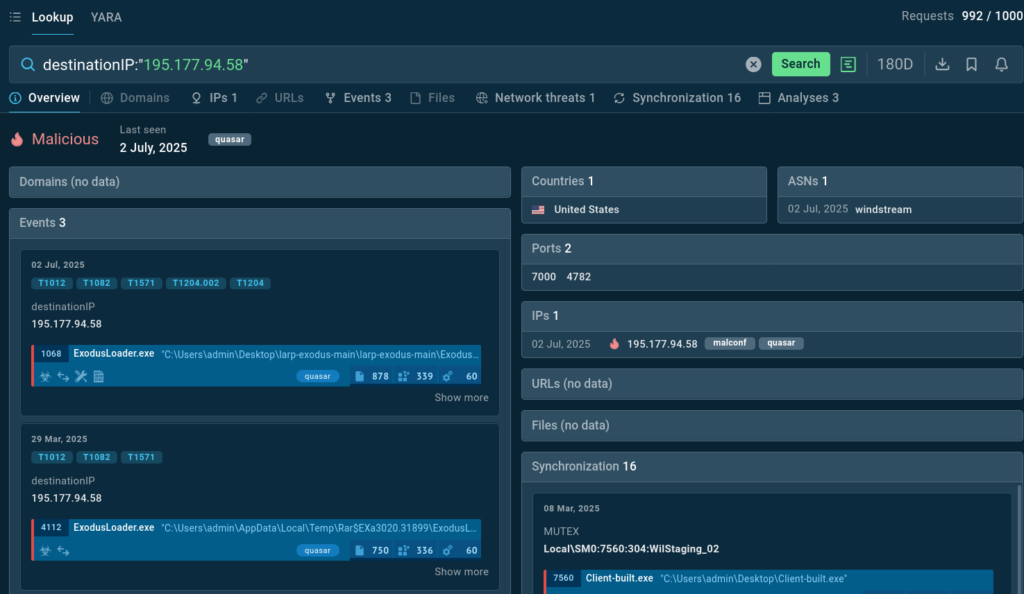
A suspicious IP spotted in network connections can be checked against TI Lookup’s vast indicator database in a matter of seconds.   

destinationIP:”195.177.94.58″ 

IP search results with a malicious verdict 

The IP address is exposed as malicious and a part of Quasar RAT inventory. It has been detected in recent malware samples, so it is an indicator of an actual threat.   

Get 50 search requests to test TI Lookup in your SOC
Speed up triage and gain threat context for fast response 


Request trial


2. Process Investigation 

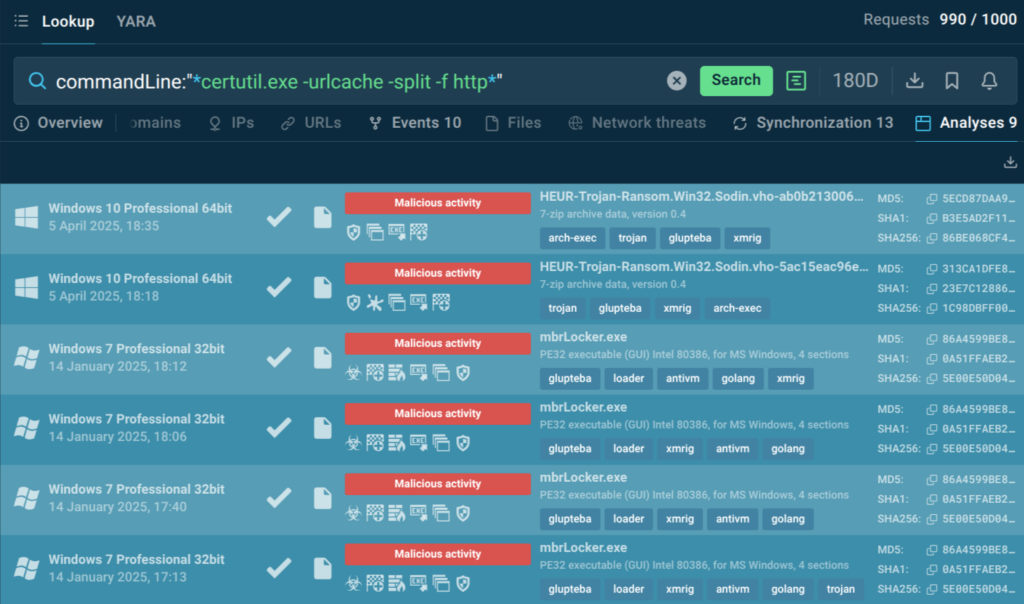
Suppose an analyst notices a legitimate utility like certutil.exe is used for retrieving content from an external URL. All they have to do is copy a snippet of command line contents and paste it into TI Lookup search bar with the CommandLine search parameter:  

commandLine:”certutil.exe -urlcache -split -f http” 

Lookup by a fragment of a command line command 

Switching to the Analyses tab of the search results, the analyst observes a selection of malware samples that performed this command during their execution chain. Now he knows that this behavior is typical for Glupteba trojan acting as a loader. Each sample analysis can be researched in depth and used for collecting IOCs.  

3. Registry Change Understanding 

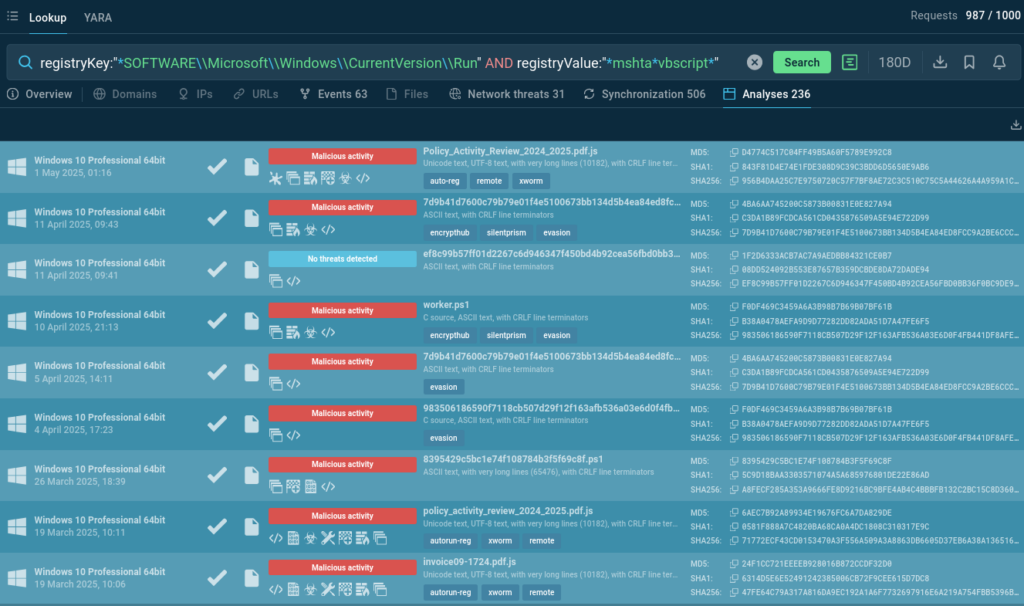
Could it be okay if an app changes Windows registry key \CurrentVersion\Run responsible for default autoruns at system startup, by adding a command that initiates a script execution chain via mshta.exe using built-in VBScript? Query TI Lookup using RegistryKey and RegistryValue search parameters:  

registryKey:”SOFTWAREMicrosoftWindowsCurrentVersionRun” AND registryValue:”mshtavbscript” 

Malware samples that change Windows registry in a certain way 

As we can notice looking at the found sandbox analyses, such registry modification is often associated with malware evasion and persistence techniques, and is typical for XWorm RAT.  

4. Mutex detection 

When a new malware emerges, the available intelligence on it can be scarce. Nitrogen ransomware became notorious for targeting the valuable and vulnerable financial sector back in mid-2024. For months, a single research report was the source of public data on this strain. It provided analysts with two IOCs and two IOBs, one of the formers was a mutex.  

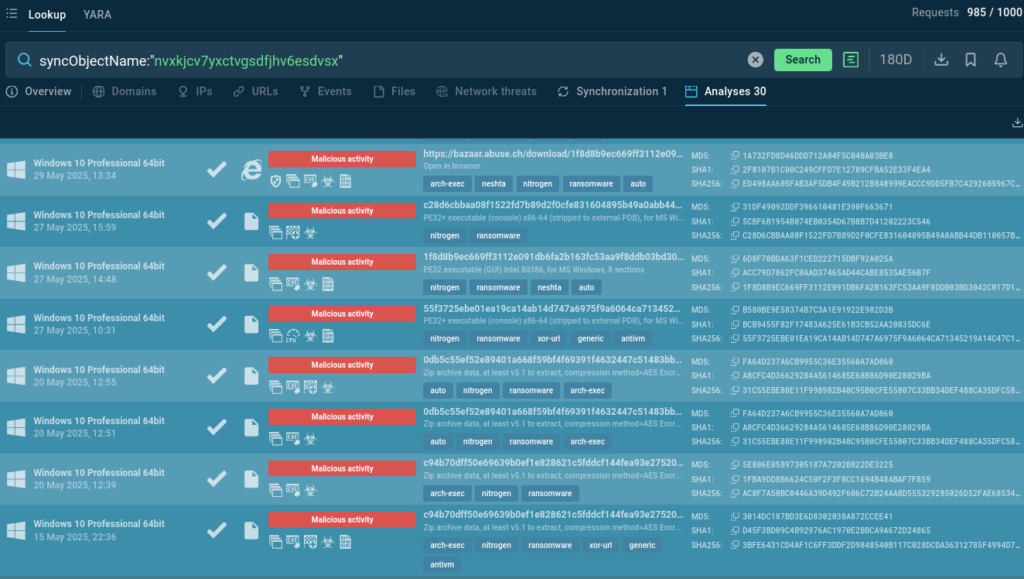
Before encrypting files, Nitrogen creates a unique mutex (nvxkjcv7yxctvgsdfjhv6esdvsx) to ensure only one instance of the ransomware runs at a time. The mutex can be used for Nitrogen detection, and searching for it via Threat Intelligence Lookup delivers Nitrogen samples detonated in the Interactive Sandbox.  

syncObjectName:”nvxkjcv7yxctvgsdfjhv6esdvsx” 

SyncObject parameters in TI Lookup help to work with mutexes  

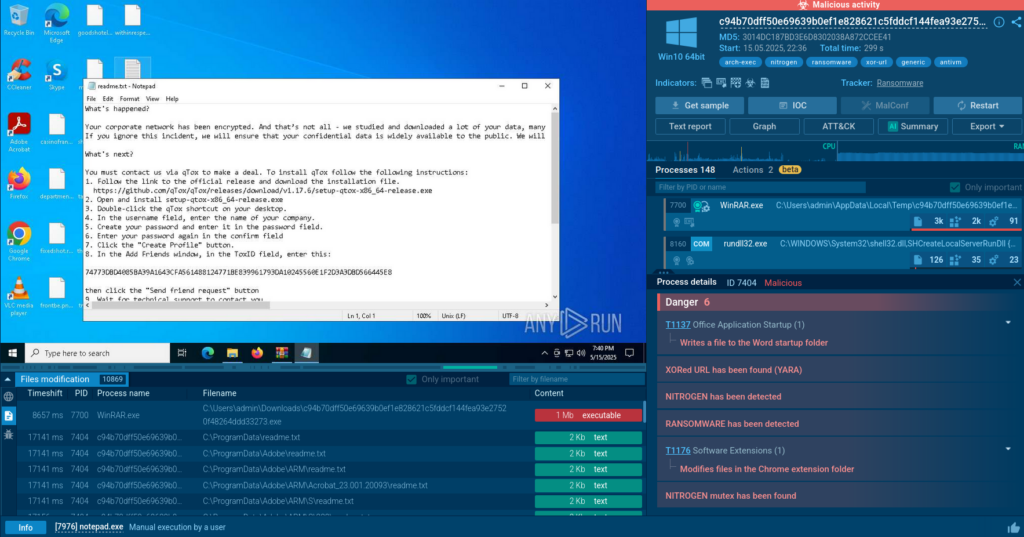
Each sample can be explored to enrich the understanding of the threat and gather additional indicators not featured in public research. 

Nitrogen sample analysis: ransom note and one of the main processes 

5. Payload recognition 

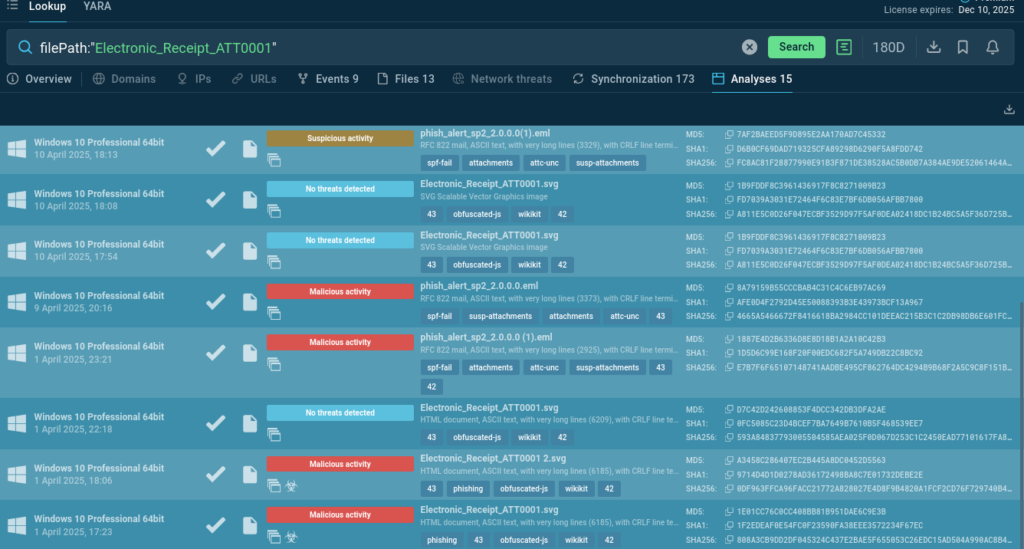
File hashes as unique digital fingerprints of a particular file are popular indicators of compromise. TI Lookup supports md5, sha256 and sha1 search parameters, but also allows to use a file name as a query. 

filePath:”Electronic_Receipt_ATT0001″ 

File search results: not always malicious but not to be trusted 

These lookup results show that a certain file name pattern can emerge in both malicious and benign samples: phishing kit campaigns often use filenames typical for popular documentation formats. 

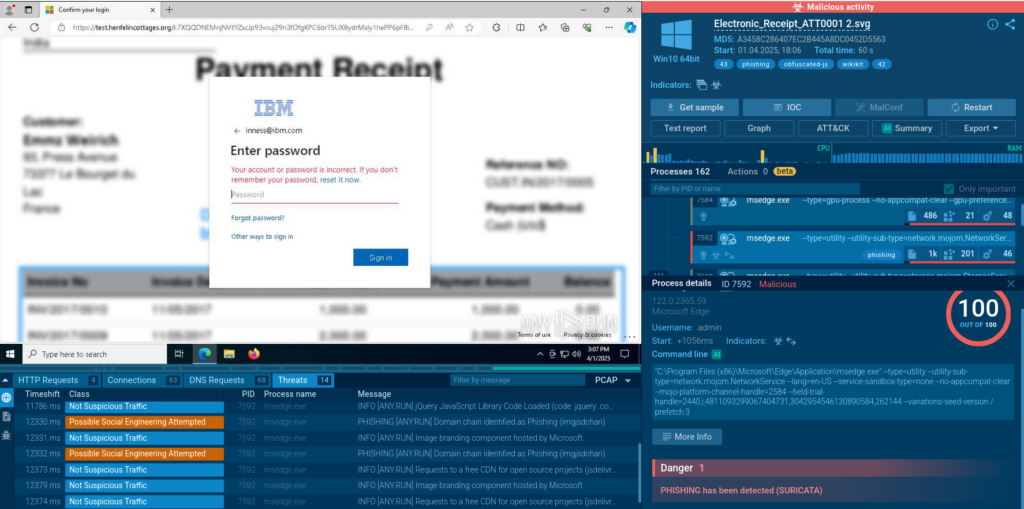
We can observe several samples of phishing attacks using the file with such name pattern in the Interactive Sandbox:  

A phishing sample analysis 

File name search can help understand the general mechanics of phishkit attacks and see a broader picture of emerging threats.

Fast, Fatigue-Free Alert Triage with Threat Intelligence 

It’s up to you not to choose between speed and accuracy, nor to accept analyst fatigue as an unavoidable cost of doing business. Instead, embrace solutions that enable both rapid response and meticulous analysis. 

ANY.RUN’s Threat Intelligence Lookup fuels this strategy by providing immediate, context-rich insights into suspicious artifacts and transforming reactive, manual investigations into proactive, informed decision-making. This translates into tangible business values: 

  • Enhanced Operational Efficiency: Teams can process a higher volume of alerts with existing staff, optimizing the return on investment in security tools and personnel. 
  • Reduced Organizational Risk: Faster and more accurate identification of genuine threats minimizes the window of opportunity for attackers, thereby reducing the likelihood of successful breaches, data loss, and system downtime.   
  • Improved Analyst Productivity and Morale: Automating the initial stages of threat intelligence gathering frees analysts from repetitive, cognitively taxing tasks.  
  • Preserved Customer Trust and Brand Reputation: Swift and effective handling of security incidents demonstrates a commitment to protecting sensitive data and maintaining operational integrity. 

Investing in solutions like ANY.RUN’s Threat Intelligence Lookup is not just about technology; it’s about building a sustainable and resilient security posture that protects an organization’s financial health, its most valuable assets, and its people. 

About ANY.RUN  

Over 500,000 cybersecurity professionals and 15,000+ companies in finance, manufacturing, healthcare, and other sectors rely on ANY.RUN. Our services streamline malware and phishing investigations for organizations worldwide.  

  • Speed up triage and response: Detonate suspicious files using ANY.RUN’s Interactive Sandbox to observe malicious behavior in real time and collect insights for faster and more confident security decisions.  
  • Improve threat detection: ANY.RUN’s Threat Intelligence Lookup and TI Feeds provide actionable insights into cyber attacks, improving detection and deepening understanding of evolving threats. 

Start 14-day trial of ANY.RUN’s solutions in your SOC today 

The post How to Maintain Fast and Fatigue-Free Alert Triage with Threat Intelligence  appeared first on ANY.RUN’s Cybersecurity Blog.

ANY.RUN’s Cybersecurity Blog – ​Read More

Unpatched Ruckus Vulnerabilities Allow Wireless Environment Hacking

Multiple vulnerabilities in Ruckus Wireless management products could be exploited to fully compromise the managed environments.

The post Unpatched Ruckus Vulnerabilities Allow Wireless Environment Hacking appeared first on SecurityWeek.

SecurityWeek – ​Read More