The Kaspersky for iOS app now supports Apple Shortcuts and Siri. In this post, we discuss the new possibilities this gives our users, and how to configure Shortcuts to work with the Kaspersky app.
How to give voice commands to Kaspersky
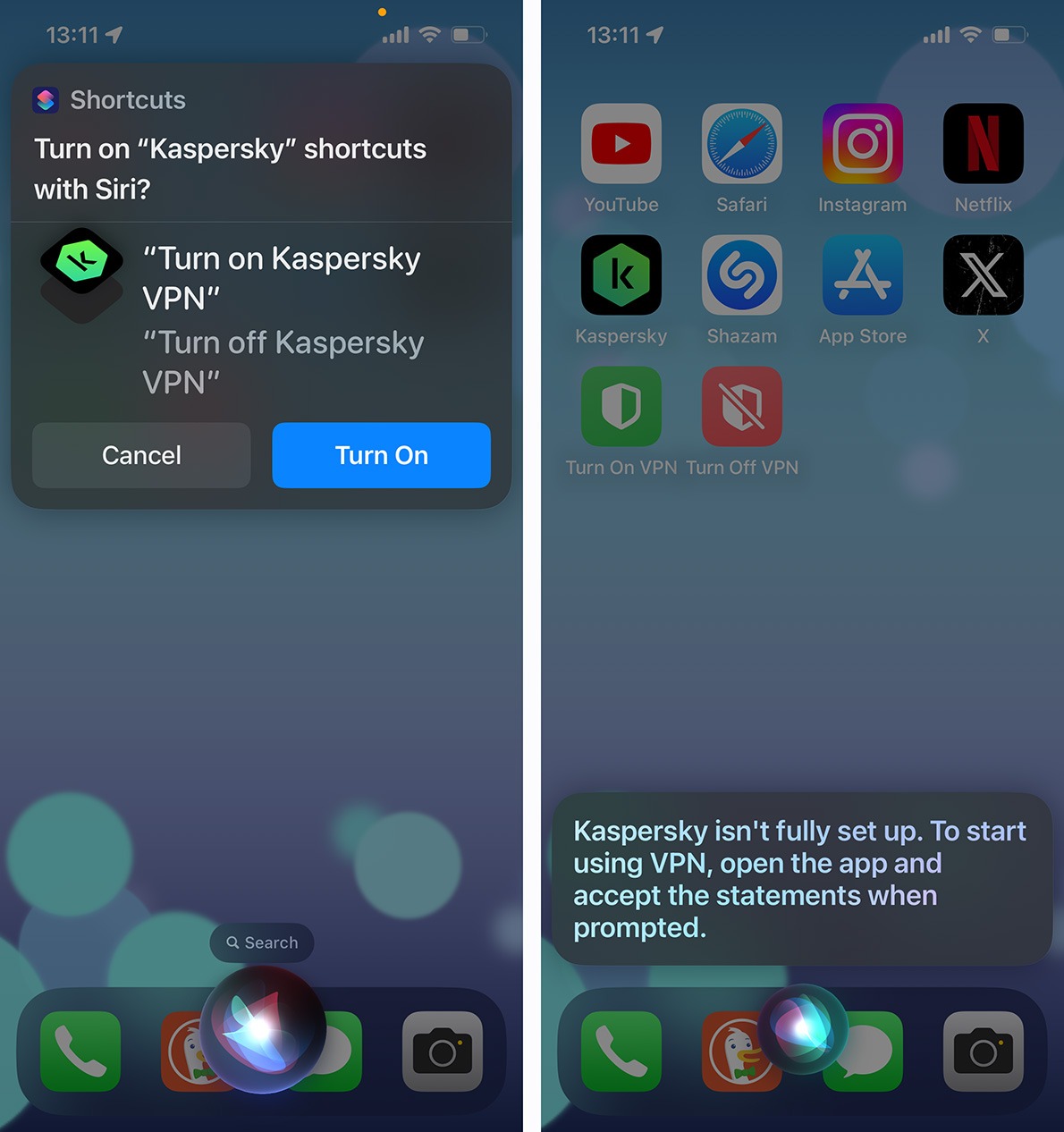
You can now turn the VPN on and off in the Kaspersky for iOS app using voice commands. Setting this up is very quick and easy: just activate Siri and say, “Siri, turn on Kaspersky VPN”. The system will then ask if you really want to enable commands — tap the blue Turn On button.
If you’ve just installed Kaspersky on your iPhone or iPad and have never turned the VPN on before, you’ll need to open the app and activate the VPN manually to accept all the necessary user agreements. After that, everything will work smoothly.
To activate voice commands for Kaspersky VPN, launch Siri and say, “Siri, turn on Kaspersky VPN”
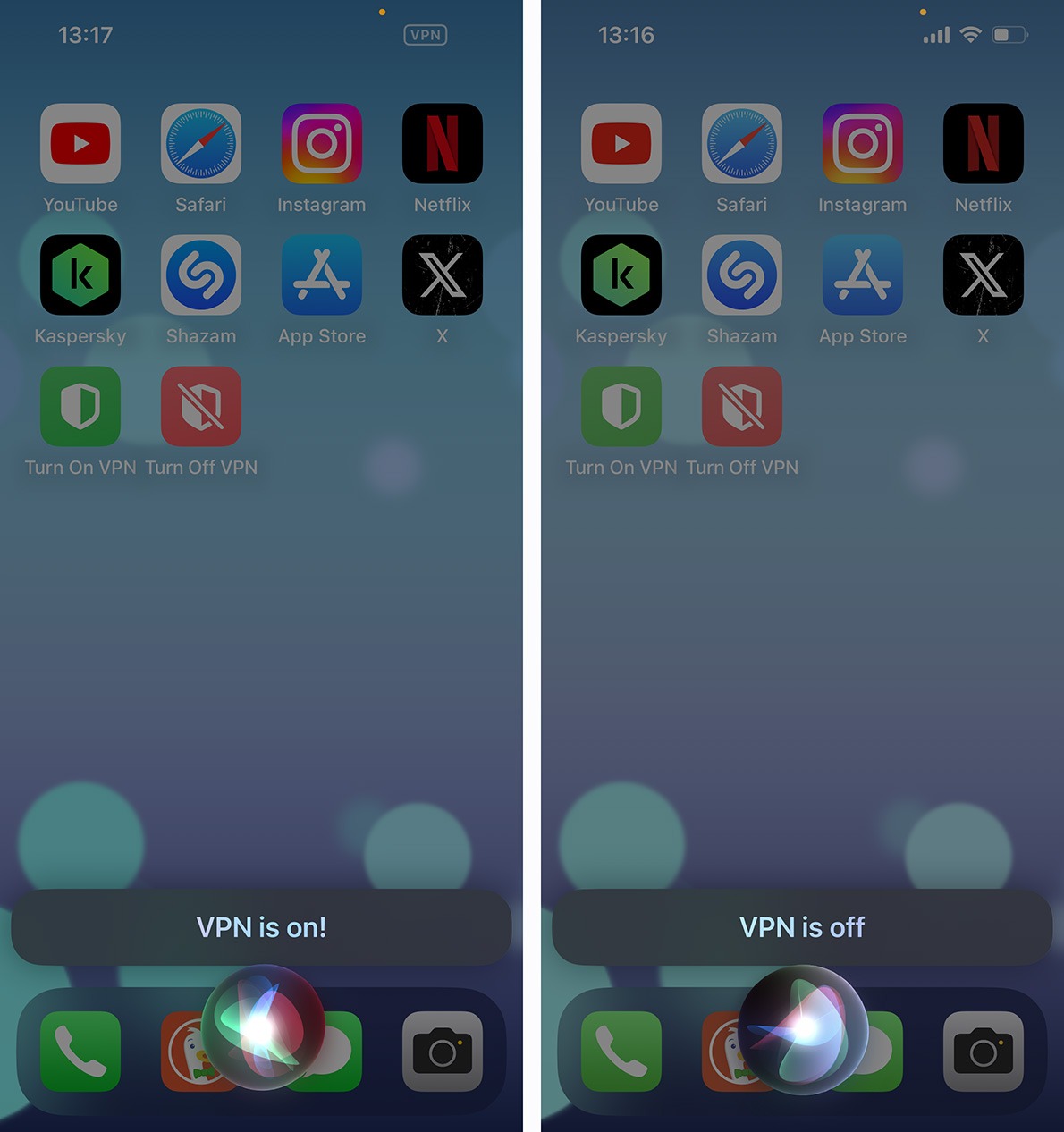
Now all you have to do is say, “Siri, turn on Kaspersky VPN” to establish a VPN connection or “Siri, turn off Kaspersky VPN” to disconnect — it’s as easy as pie.
To turn on Kaspersky VPN, say, “Siri, turn on Kaspersky VPN”. To turn it off, say, “Siri, turn off Kaspersky VPN”
How to turn VPN on and off using Shortcuts
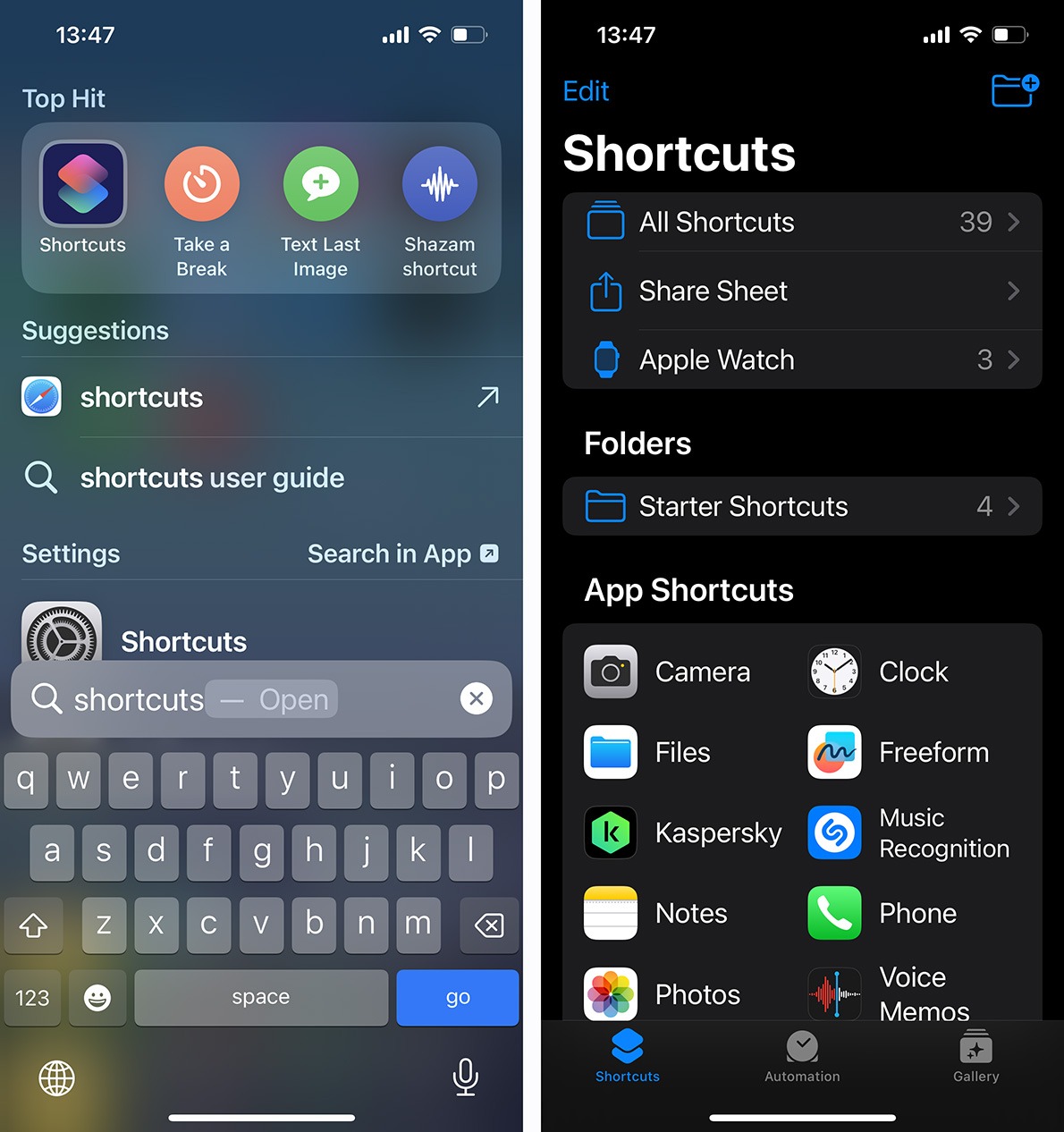
But that’s just the beginning. You can also use Apple Shortcuts to place “Turn on VPN” and “Turn off VPN” shortcuts on your iPhone’s Home Screen. To do this, find and open the Shortcuts app; the easiest way to do this is through search — especially if you rarely use this app.
To set up Kaspersky VPN Home Screen shortcuts, open the Shortcuts app and select Kaspersky
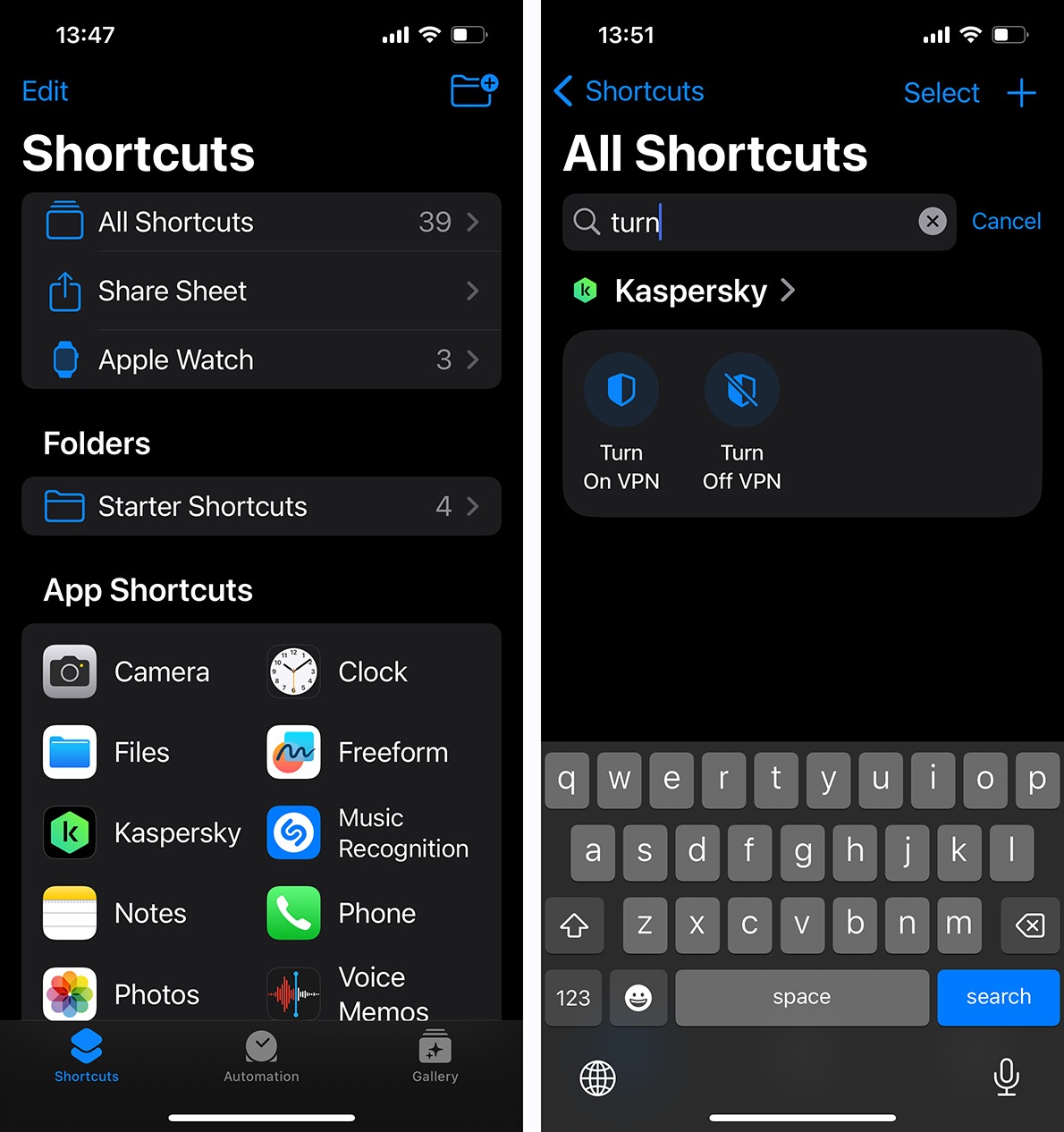
Next, find the Kaspersky app in Shortcuts and tap it. If it’s difficult to find due to an over-abundance of icons, you can use the search function. To do this, tap All Shortcuts and type “Turn” in the search field. In both cases, the necessary shortcuts will now appear on the screen.
To find Kaspersky VPN shortcuts in Shortcuts, you can use the search function
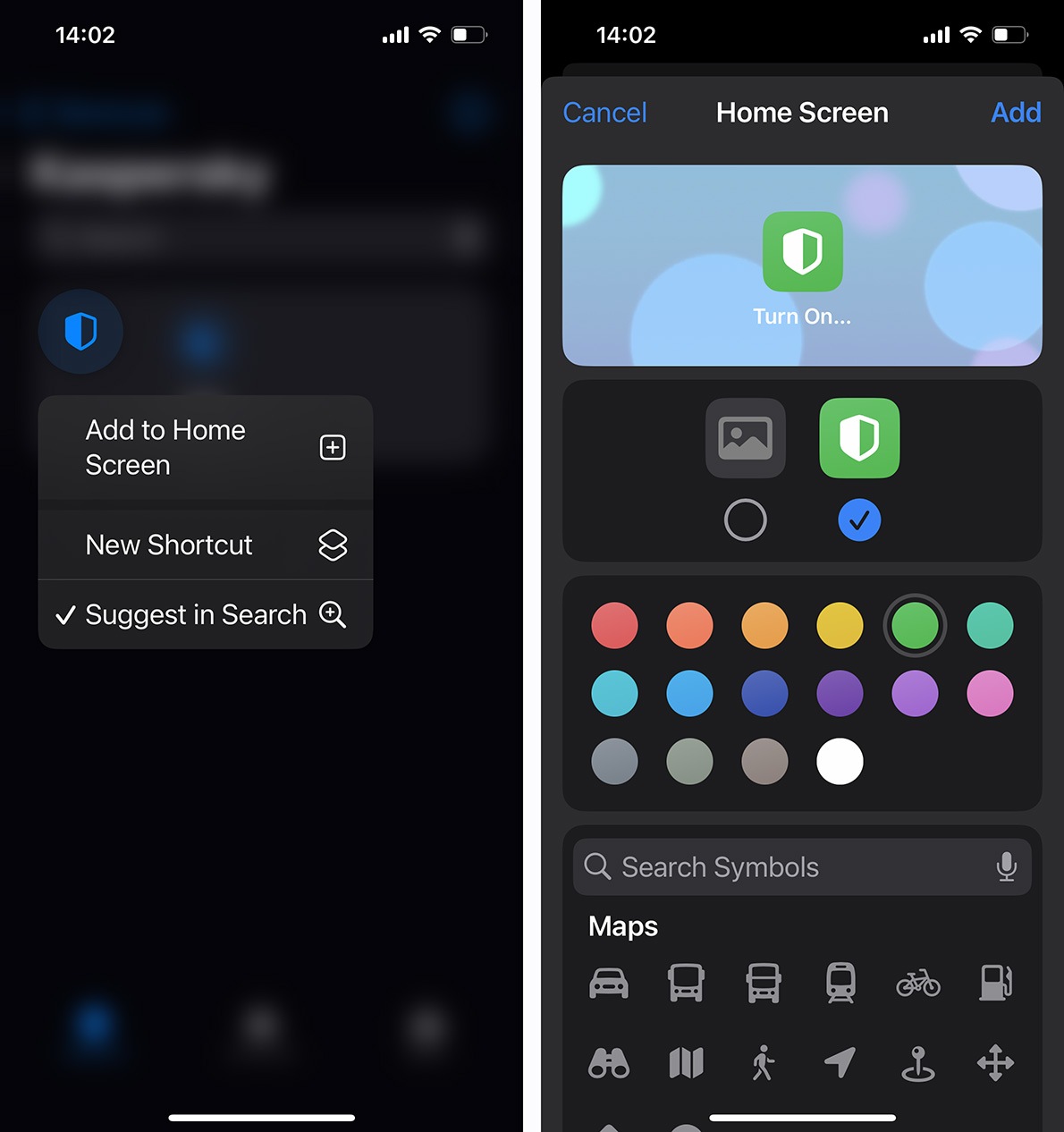
Simply tapping the shortcut will immediately activate it — turning the VPN on or off. To add a shortcut to the Home Screen, tap and hold the shortcut. A pop-up menu will appear — select Add to Home Screen.
On the next screen, you can choose the icon and color of the shortcut. By default, iOS suggests blue, but we recommend choosing green for “Turn on VPN”, and red for “Turn off VPN”. This way, you’ll instantly know which shortcut does what, making them convenient to use.
How to add “Turn on VPN” and “Turn off VPN” shortcuts to the Home Screen
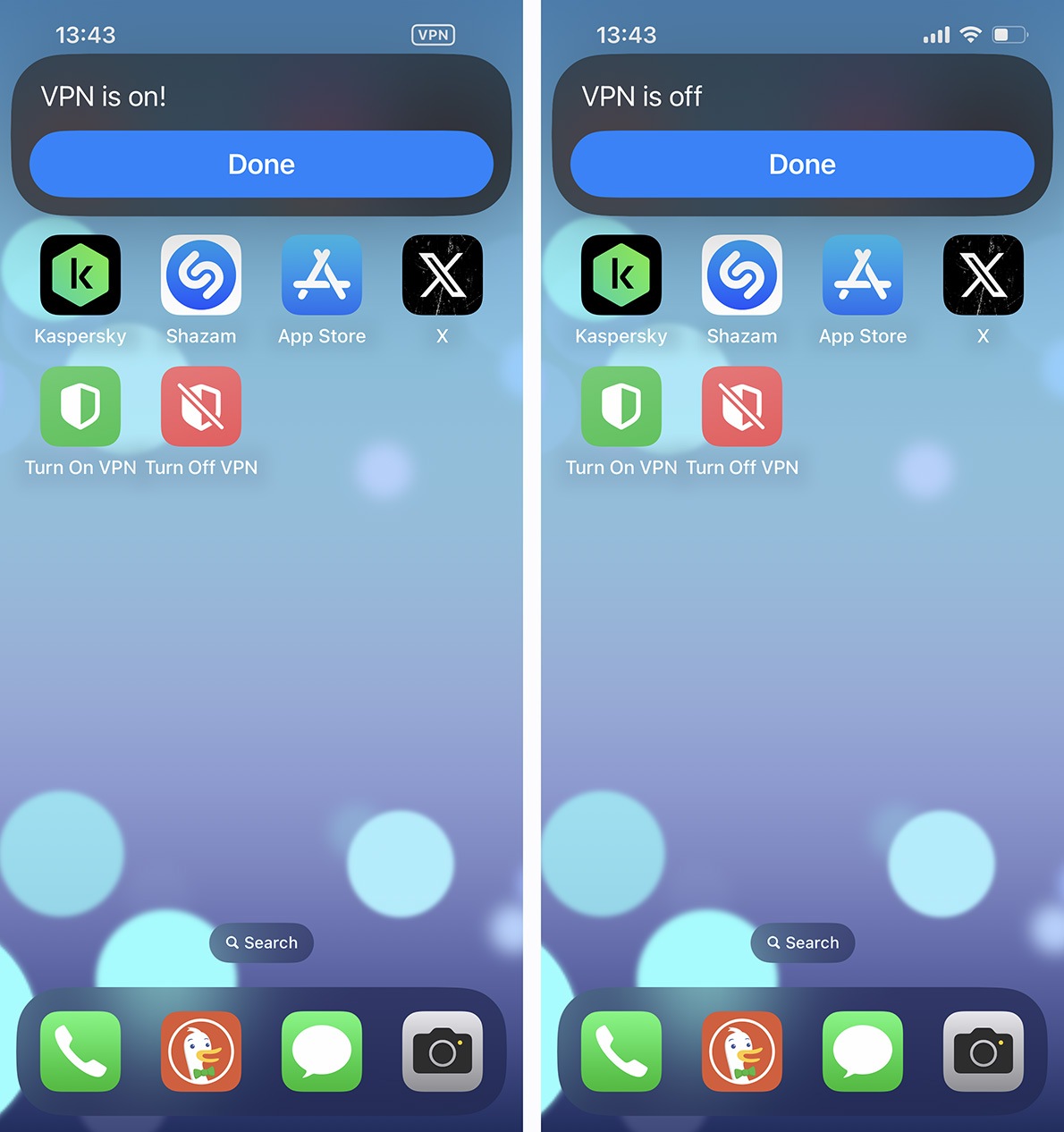
All done! Now you have handy shortcuts on your Home Screen that let you quickly turn the VPN on or off in the Kaspersky for iOS app with just a single tap.
Now you can turn Kaspersky VPN on and off with one tap
How to trigger Kaspersky VPN activation when launching apps
And that’s still not all! You can also use Shortcuts to automatically trigger VPN activation in Kaspersky for iOS. For example, you can automatically establish a VPN connection when launching a particular app.
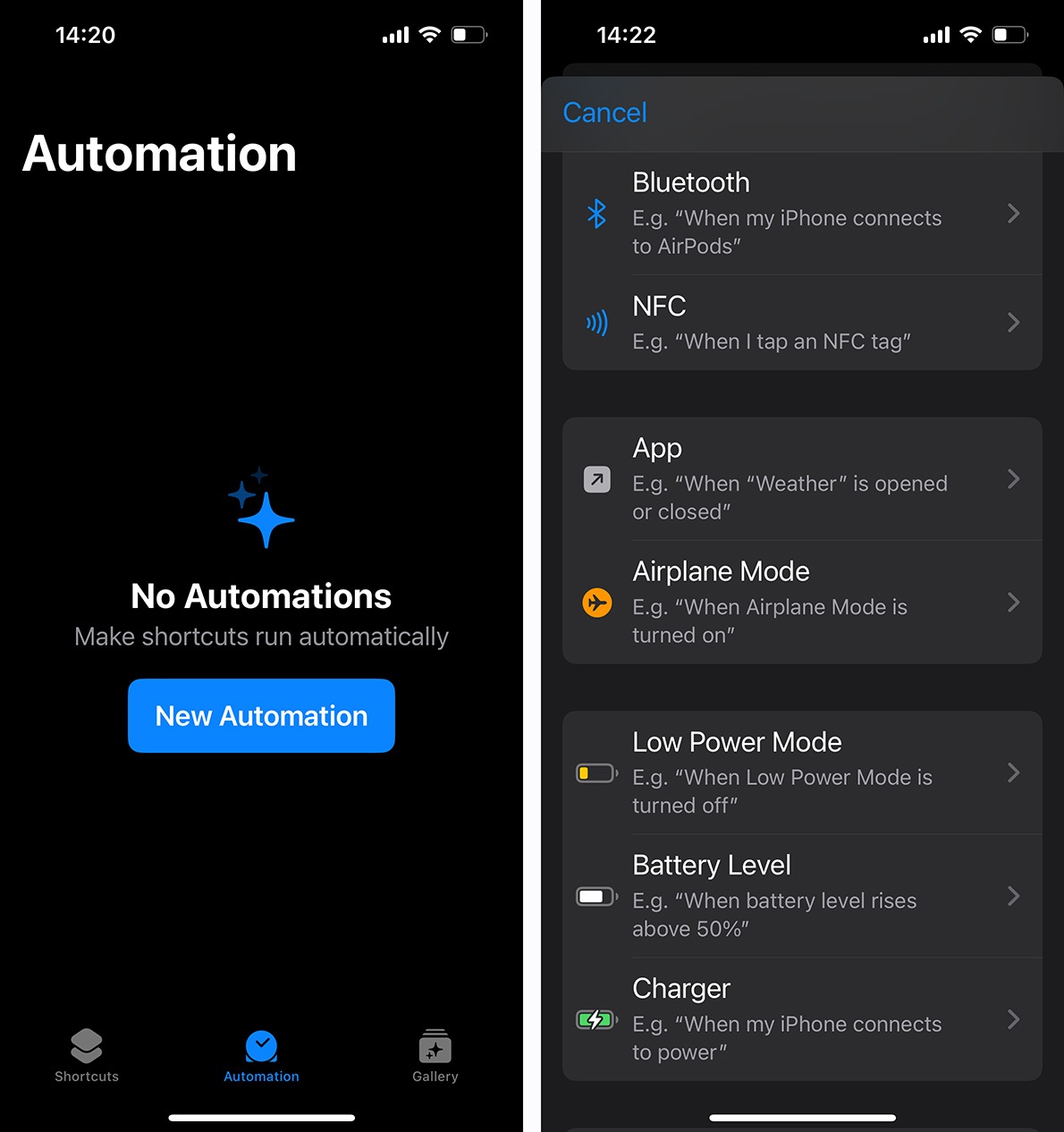
To do this, open the Shortcuts app, go to the Automation tab, and tap the large blue New Automation button (or the + in the upper right corner of the screen if you’ve created automation scripts before). On the page that opens, scroll down to the App option and tap it.
You can use Shortcuts to automate Kaspersky VPN activation — for example, when launching a particular app
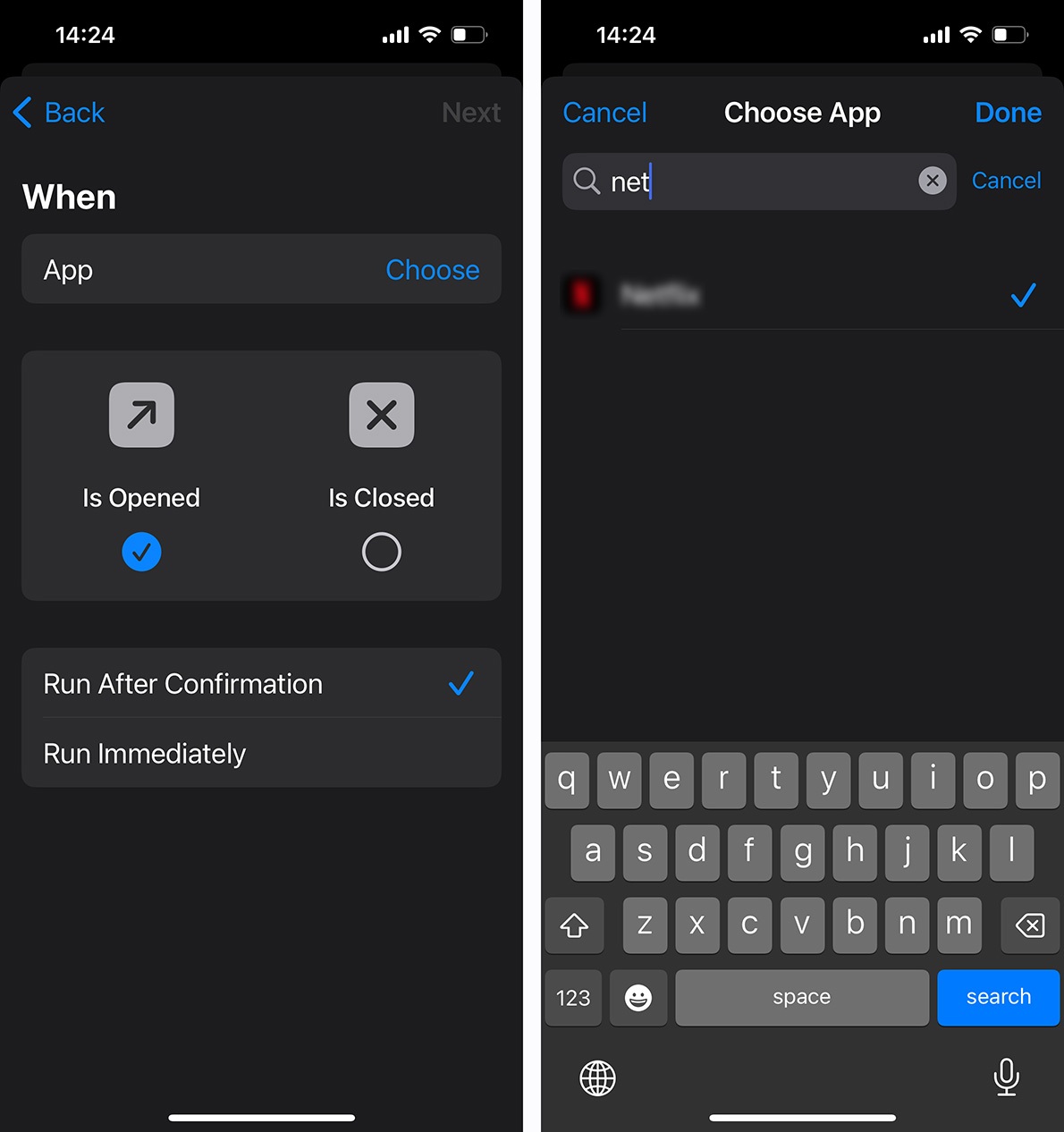
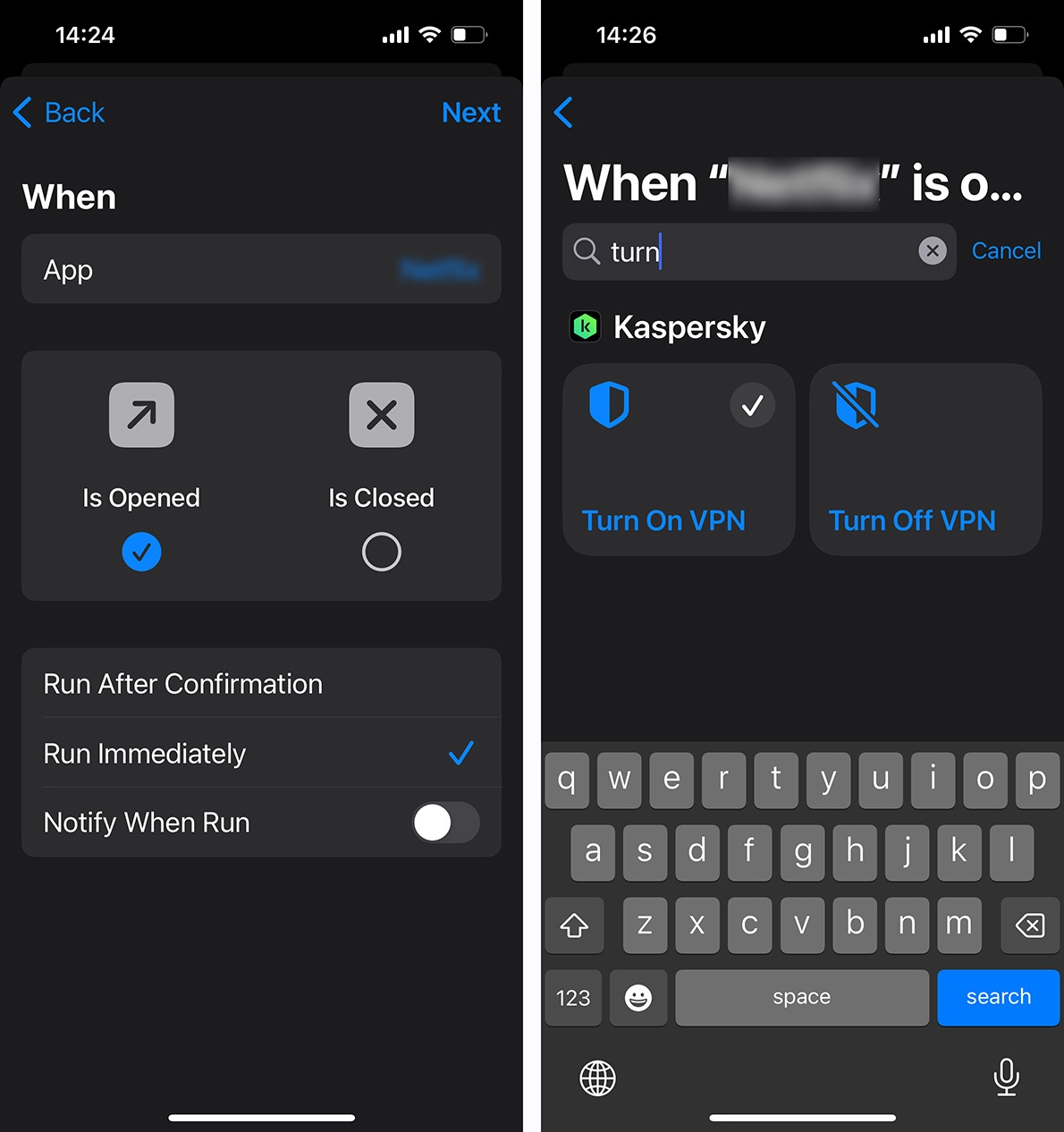
Next, tap Choose to select an app, check the box at the bottom of the screen next to Run Immediately so the system doesn’t ask unnecessary questions, and tap Next.
Select the desired app and check the box next to “Run Immediately”
On the next screen, use the search to find the familiar Turn on VPN shortcut and select it. Done! Now a VPN connection will be established automatically when you launch the app you’ve selected.
Tap “Next” and find the “Turn on VPN” shortcut
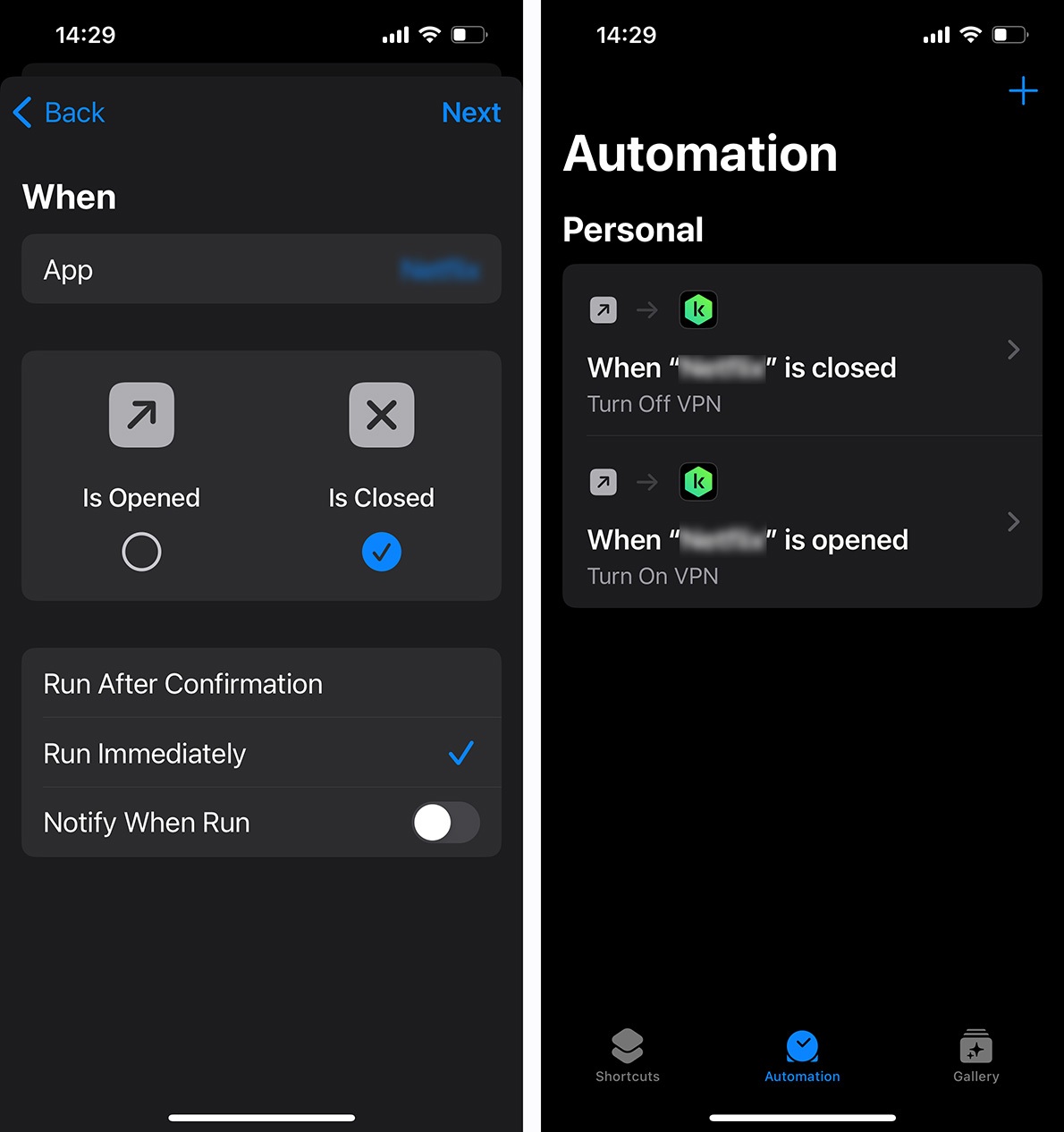
By the way, you can also configure the VPN connection to automatically disconnect when you close this app. To do this, repeat all the steps described above, but change the condition to Is Closed, and select the Turn off VPN shortcut.
You can also automatically disconnect the VPN when closing an app: create a new automation script, change the condition to “Is Closed”, and select the “Turn off VPN” shortcut
How to trigger Kaspersky VPN activation when connecting to Wi-Fi networks
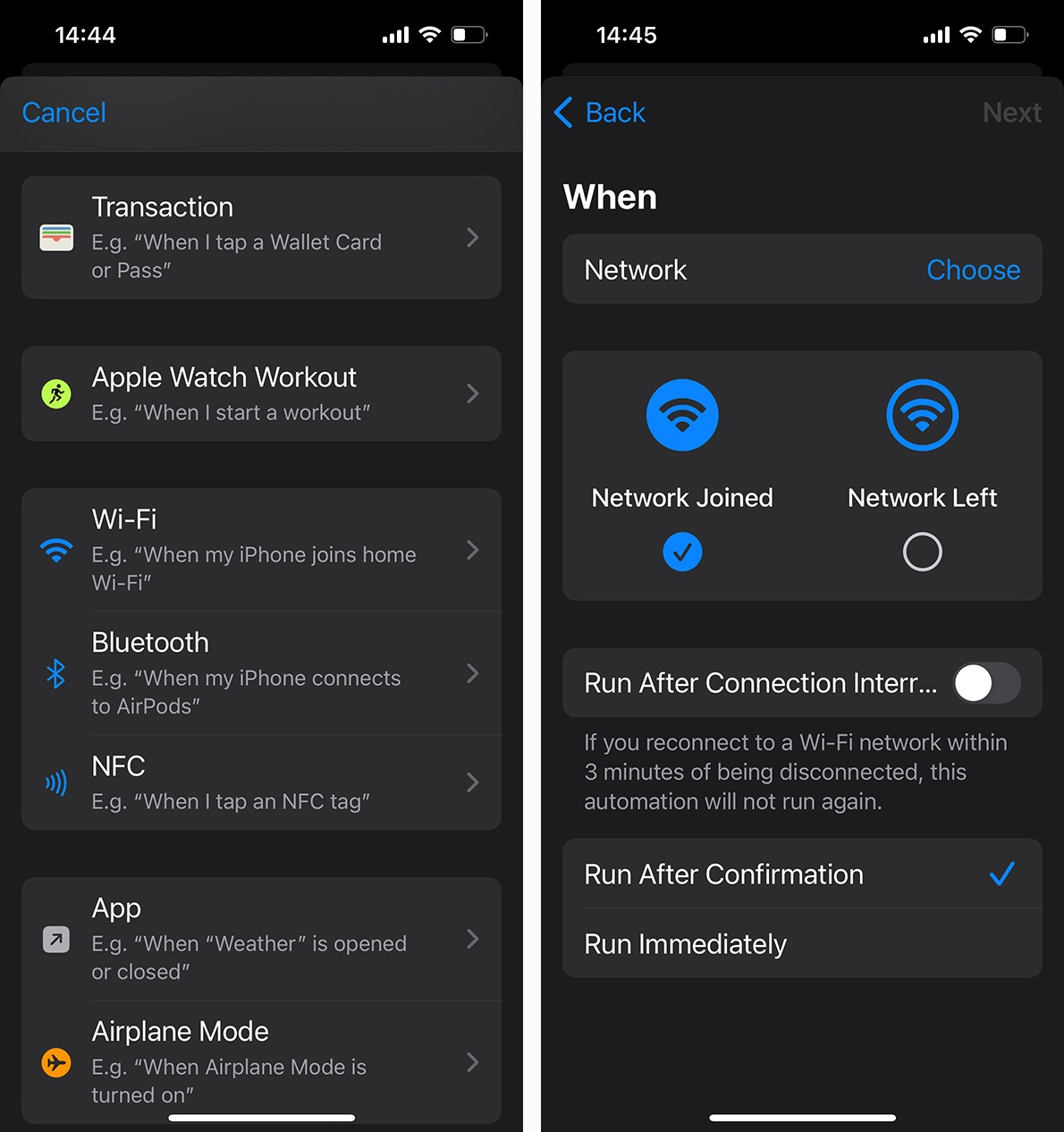
Another possibility is to activate the VPN automatically when connecting to any Wi-Fi network — or a specific network that you don’t fully trust but have to use frequently. To do this, create a new automation script, scroll down to Wi-Fi, and select it.
To turn the VPN on automatically when connecting to Wi-Fi, create a new automation script and select “Wi-Fi” from the list
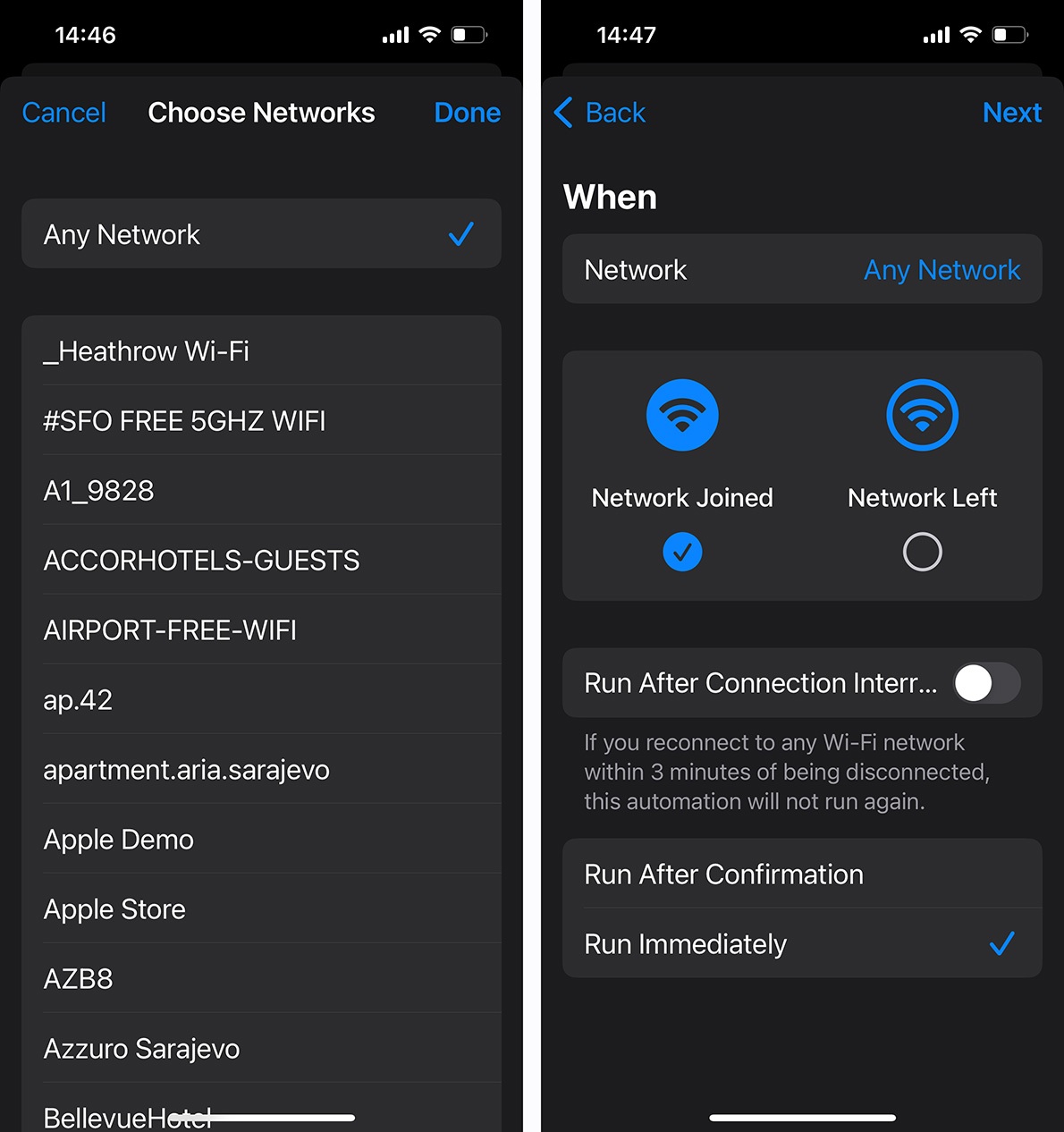
In the window that opens, click Choose to select a network — either a specific one or Any Network. As before, check the box next to Run Immediately so you don’t have to confirm this action each time.
Select the desired network or “Any Network”, and check the box next to “Run Immediately”
Next, click Next and select the Turn on VPN shortcut. You can also create an additional script to close the VPN connection automatically when disconnecting from Wi-Fi.
The features described in this post are available to users with Kaspersky Plus and Kaspersky Premium subscriptions.
Other useful features of Kaspersky for iOS
Of course, the VPN is by no means the only thing in our super app Kaspersky for iOS. It also includes anti-phishing, an ad and tracker blocker, a password manager, automatic personal data-leak checking, home network protection from strangers, and much more.
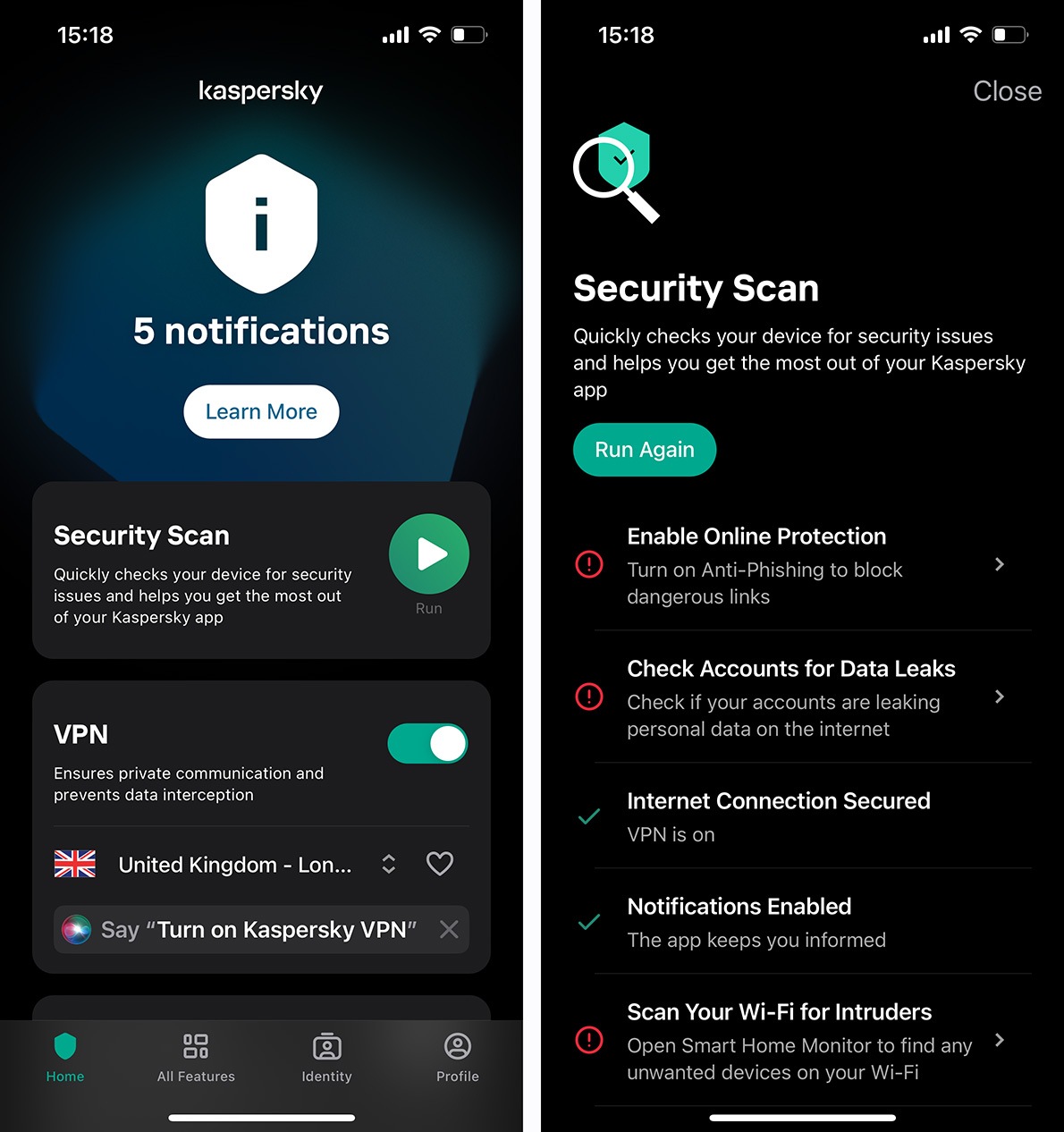
To enhance the security of your device, simply tap “Security Scan”
By the way, the updated Kaspersky for iOS app features a convenient Security Scan button at the top of the main screen, allowing you to run a security check and improve your device’s protection with a single tap.
Kaspersky official blog –